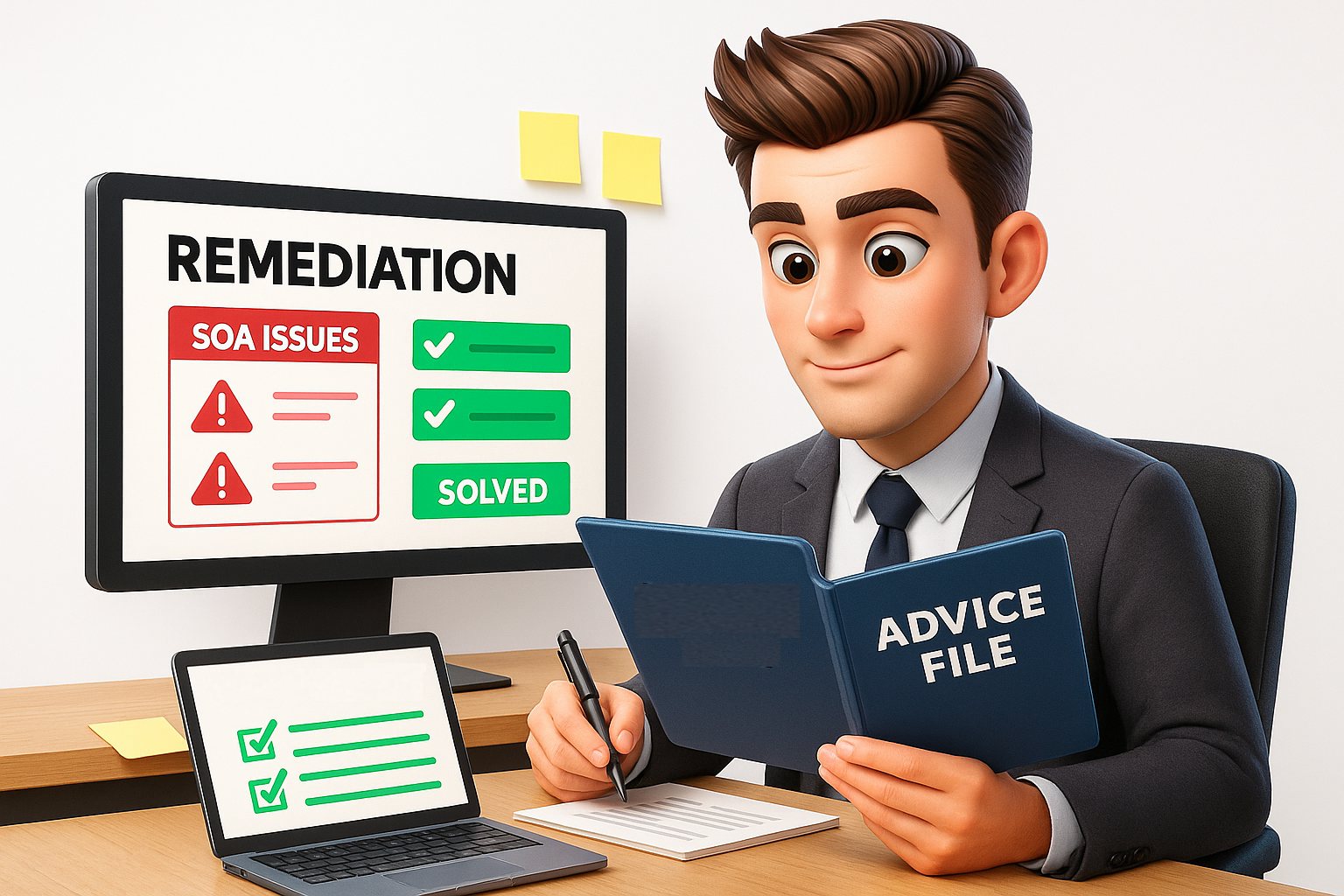
Chapter 4 - The Monitoring and Supervision Framework
Your file review has been drafted
Your compliance manager has notified you that the draft report of the initial findings is ready.
You can review the findings in raise any disputes or concerns before the report is finalised
Step 1: Open the Compliance Hub
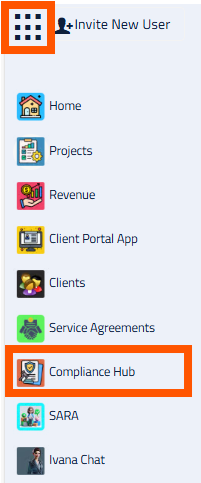
Open the Apps Menu in the top left corner, and click on the Compliance Hub.
This will open the Compliance Hub App in a new tab.
Step 2: Open the Compliance Hub
Select ‘Compliance Reviews’ from the left menu.
You will notice a new Compliance Review with the status of ‘Draft Report’. This is the report that requires your review.
Step 3: Download the Report
Download the Draft Compliance Report using the download icon.
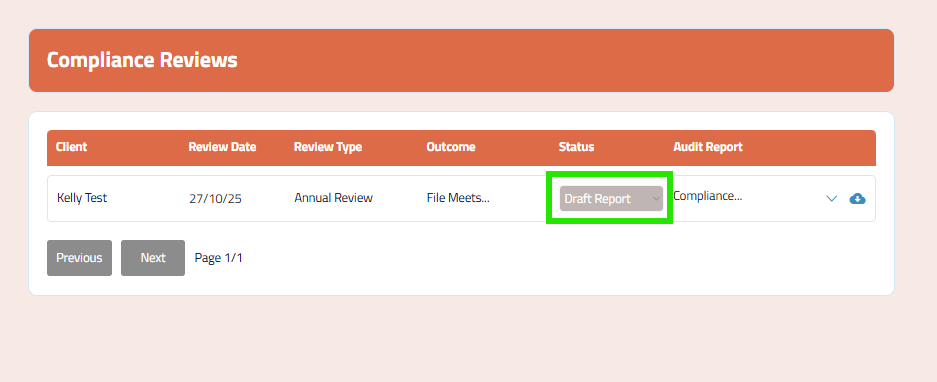
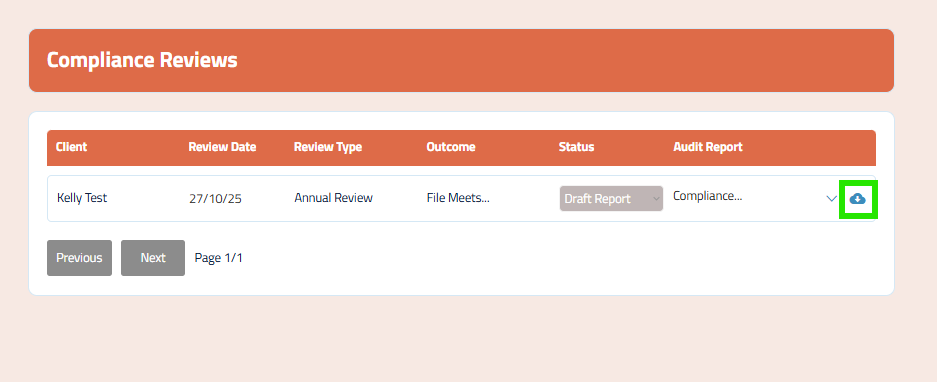
Step 4: Click the dropdown to review the draft observations
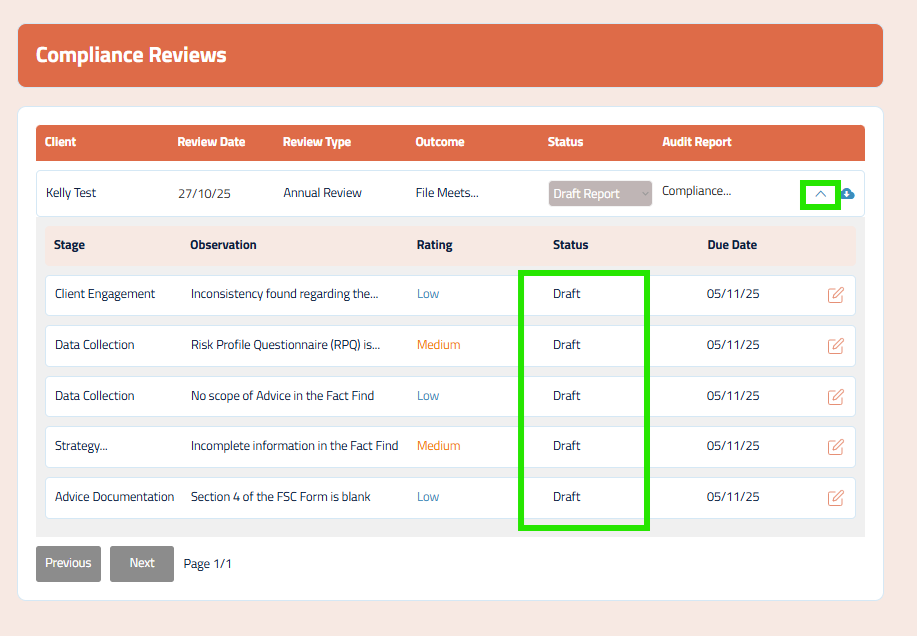
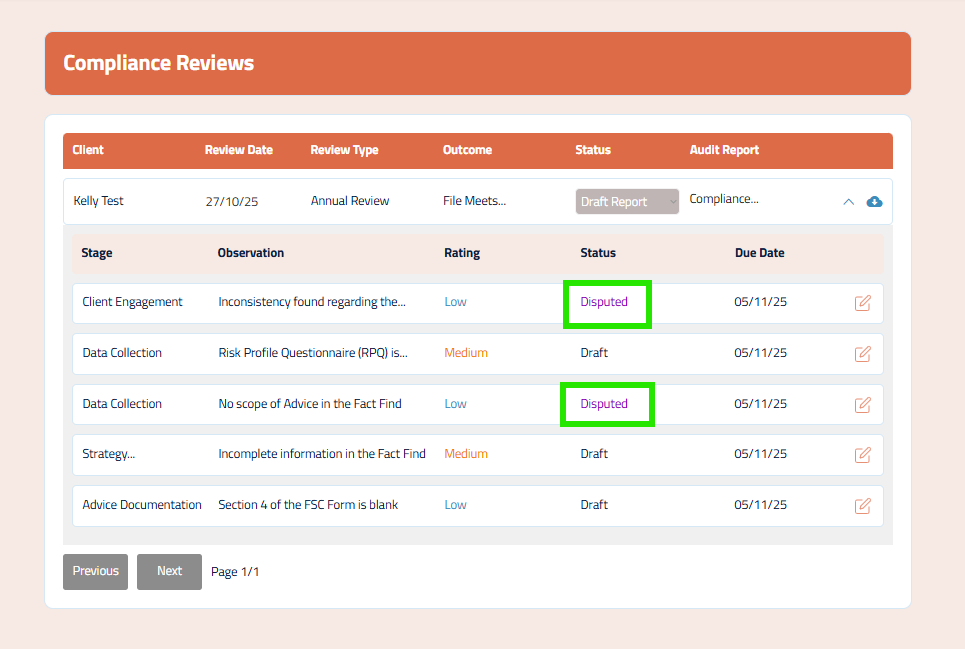
Click the dropdown icon to view the list of draft observations on the file.
These are the observations which will require you to review before the report is finalised.
Select an observation by clicking on the edit icon.
Step 5: Disputing an observation
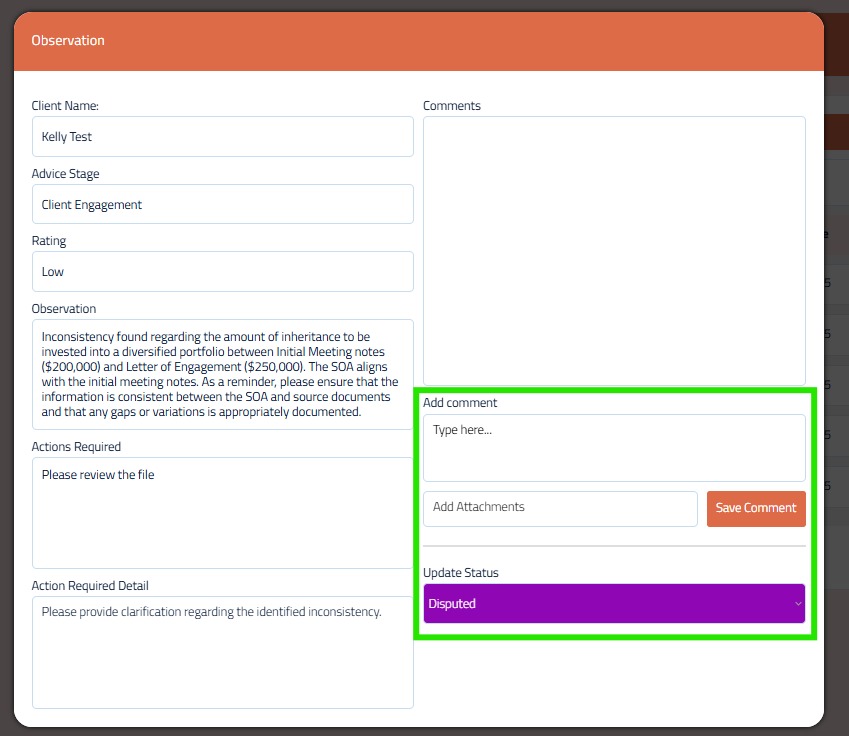
Review the details of the observation from your compliance manager.
If you feel that an observation is not accurate or relevant, you can raise a dispute on the observation.
Add a comment in the observation and upload any support documentation. Update the status of the observation to ‘Disputed’.
Repeat the same step for each observation in the file.
Important: At this review draft stage, you do not need to action and remediate every observation. Only dispute those observations which you believe are inaccurate or not correct. You will have the chance to remediate the file once the review report has been finalised.
Step 6: Finalising the review
Once any observations have been marked as ‘Disputed’, you can notify your Compliance Manager to finalise the report.
Any observations that are not under dispute can be left as ‘Draft’.
Once reviewed, your Compliance Manger will finalise your report.