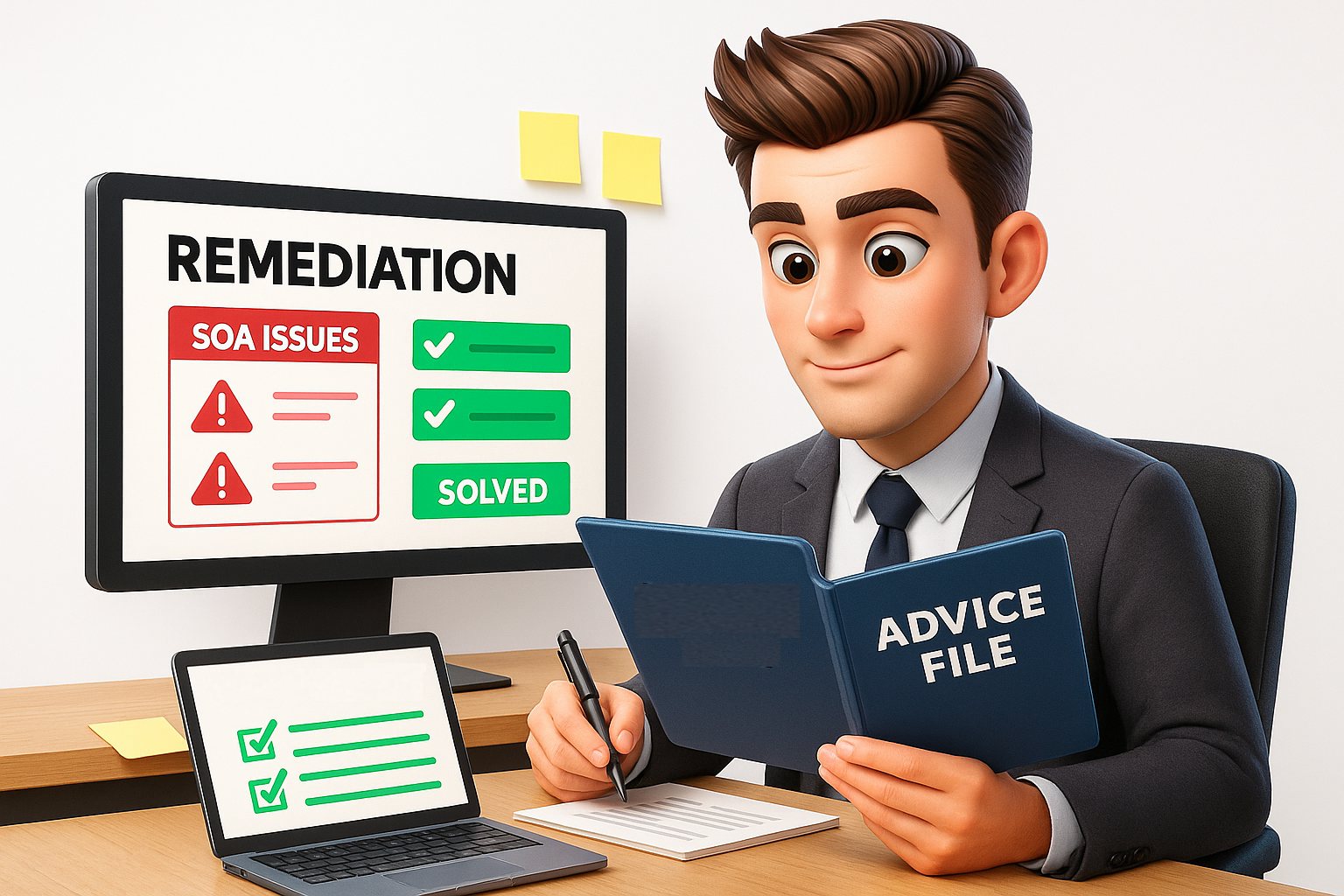
Chapter 6 - The Monitoring and Supervision Framework
Your file review has been finalised
Your Compliance Reviewer has notified you that your report has been finalised.
Let’s take a look at how you can action any observations made by the file reviewer
Step 1: Open the Compliance Hub
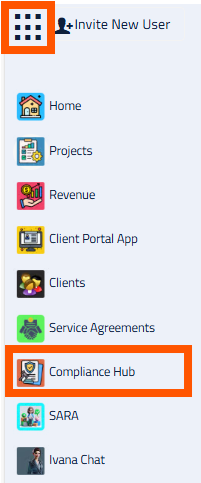
Open the Apps Menu in the top left corner, and click on the Compliance Hub.
This will open the Compliance Hub App in a new tab.
Step 2: Select the Report
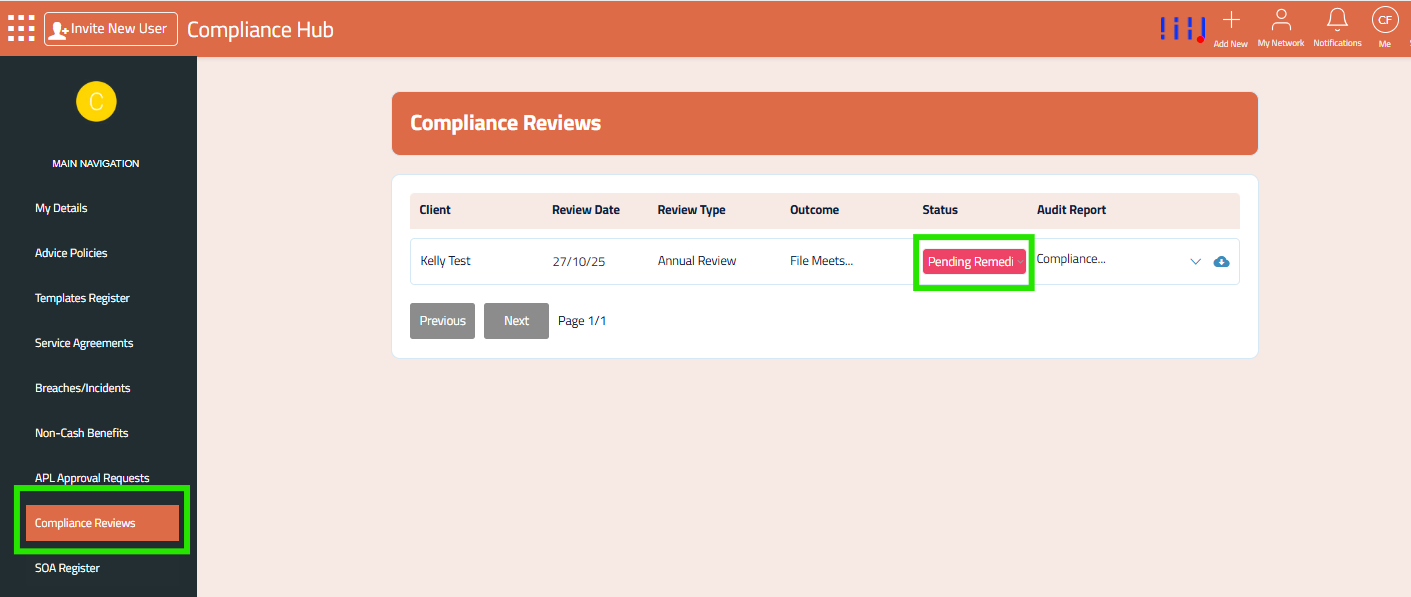
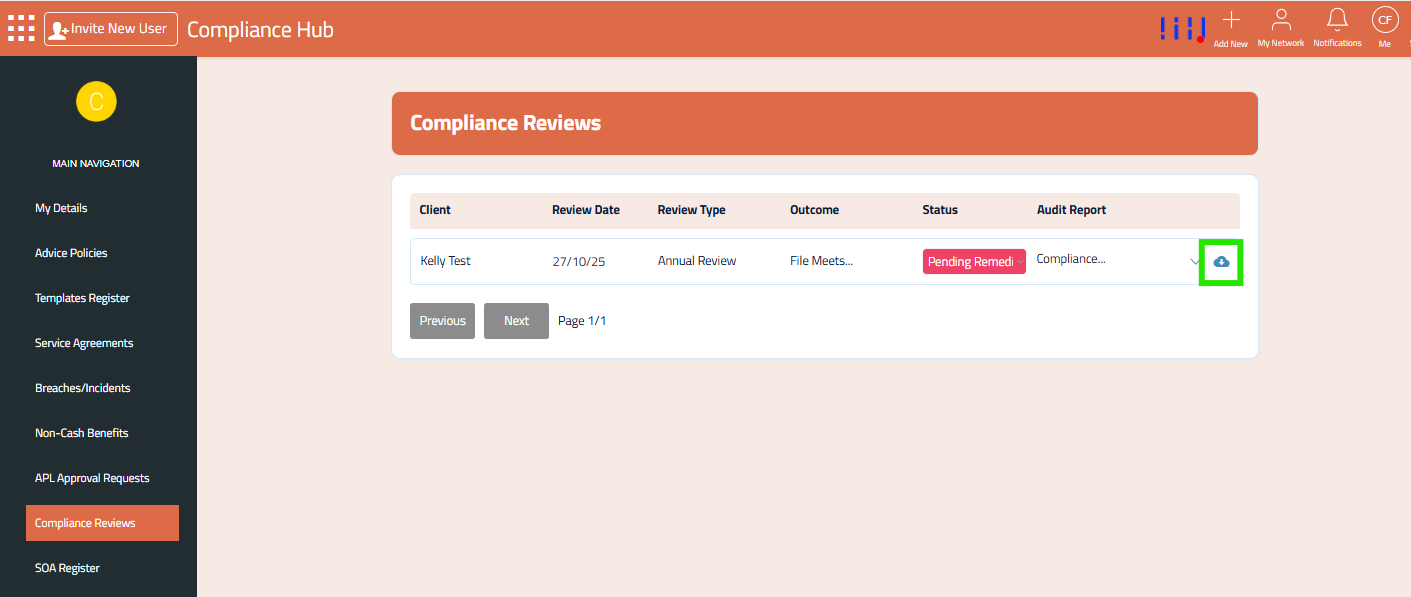
Select ‘Compliance Reviews’ from the left menu.
You will notice a new Compliance Review with the status of ‘Pending Remediations’. This is the review that requires your attention.
Step 3: Download the Report
Download the full Compliance Report using the download icon.
Step 4: Click the dropdown to view the observations
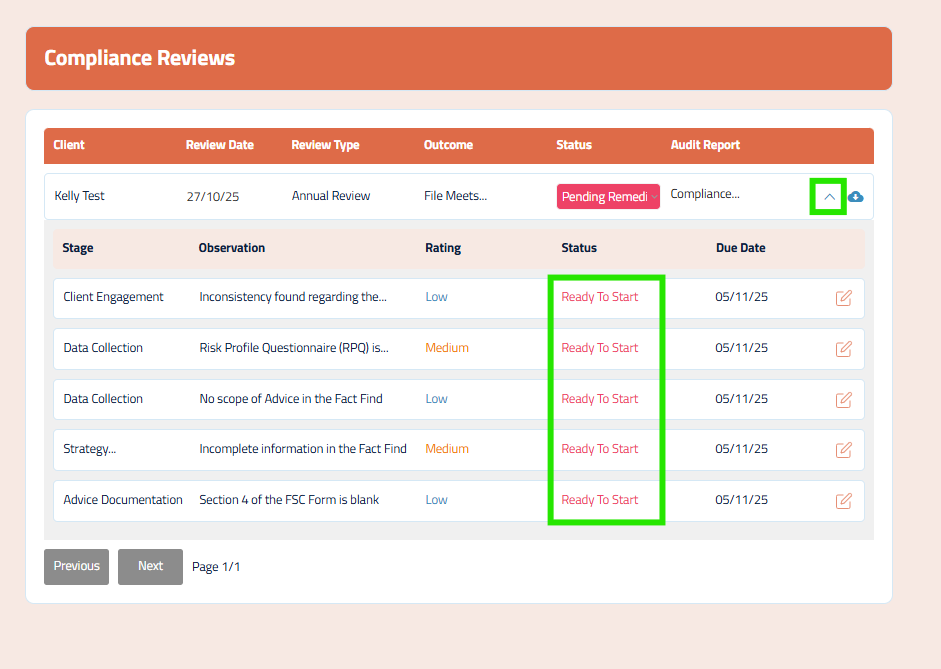
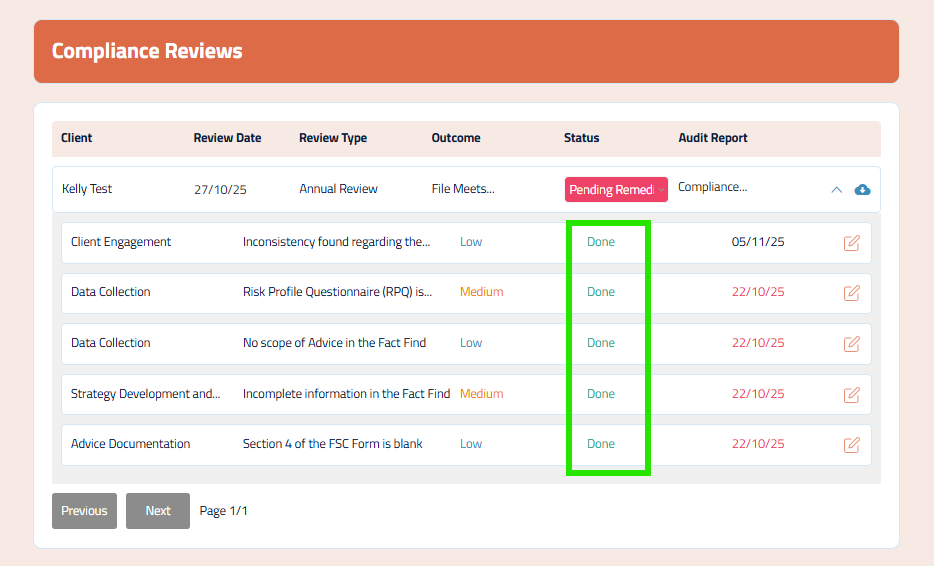
Click the dropdown icon to view the list of observations on the file.
Now that the report has been finalised, the status of the observations will be ‘Ready To Start’.
Select an observation by clicking on the edit icon.
Step 5: Action the observation
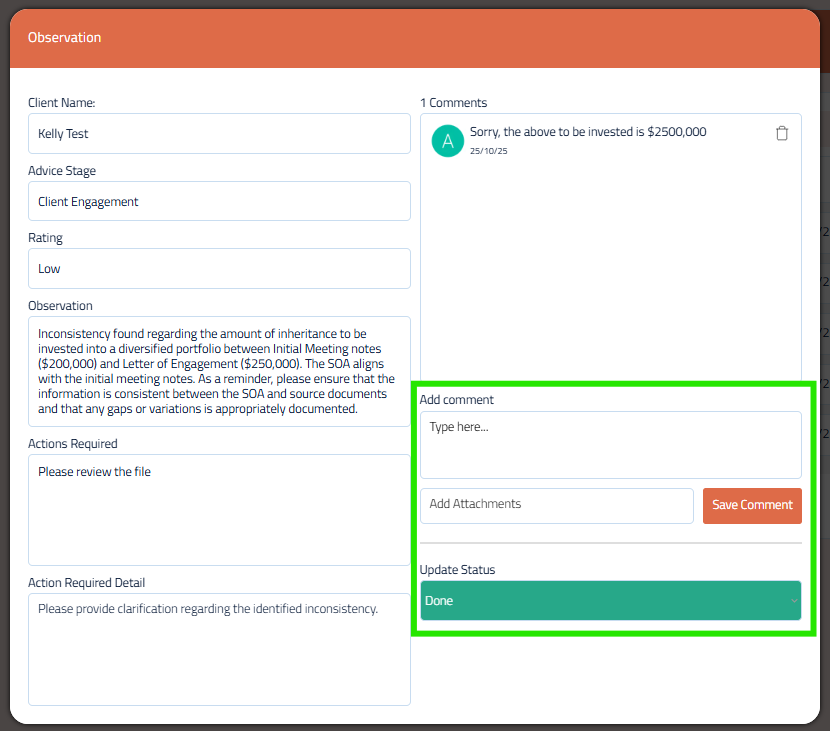
Review the actions required and update the file accordingly..
You can comment on the observation and upload any supporting documentation. Once completed, update the status to ‘Done’.
Repeat the same step for each observation in the file.
Step 6: Finalise the review
Once all observations have been marked as ‘Done’, you can notify your compliance reviewer to finalise the file.