
Chapter 11 - Cyber Security and Use of Artificial Intelligence
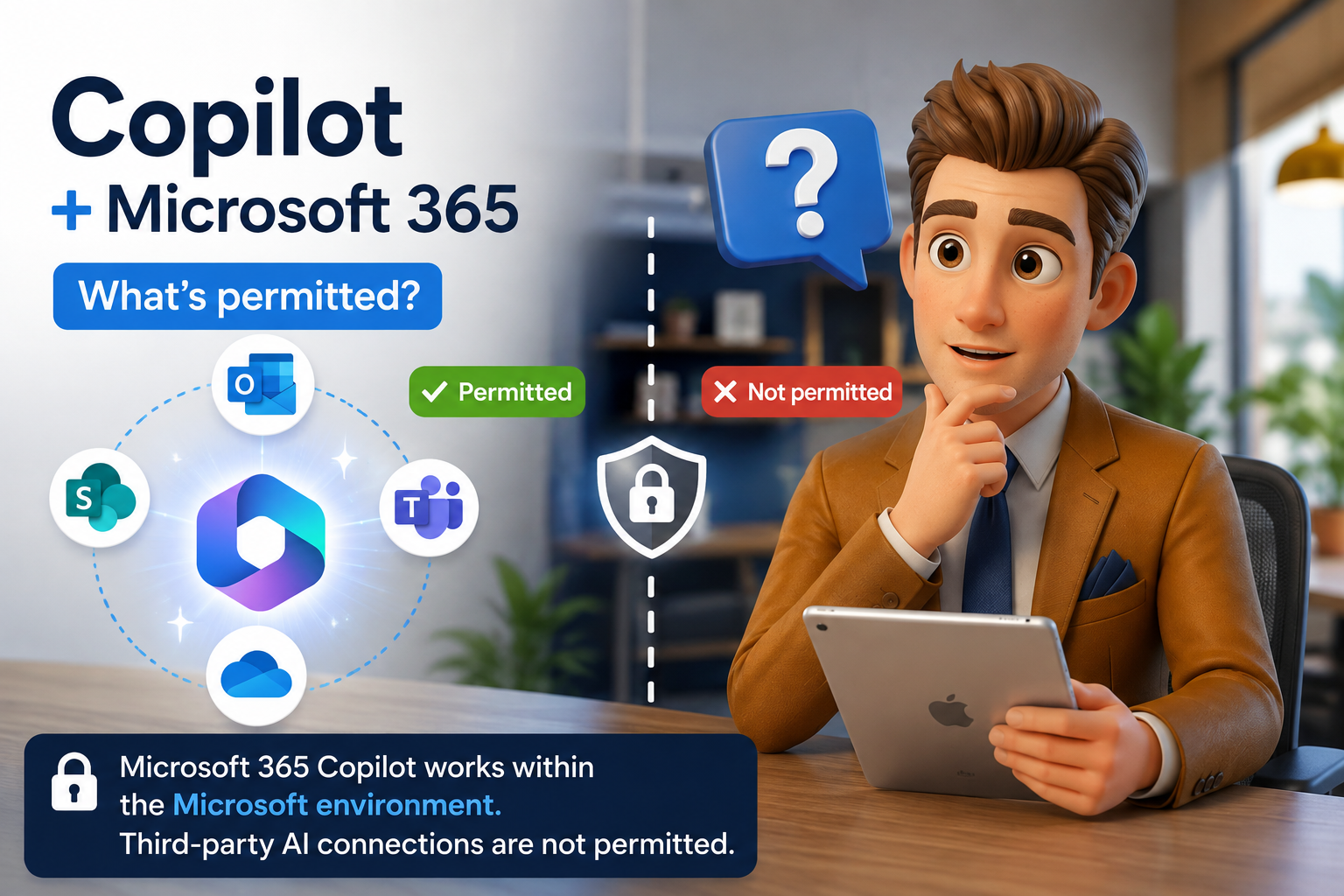
How to enable and use Microsoft 365 Copilot across your Microsoft 365 apps — and why connecting Claude or other third-party AI tools to those same services is not permitted.
Overview & Learning Objectives
This lesson explains how to use Microsoft 365 Copilot — Microsoft's built-in AI assistant — across the Microsoft 365 services you already work in, including SharePoint, Outlook, Teams, and OneDrive. It also draws a firm boundary: connecting Claude (Anthropic) or any other third-party AI tool to those same Microsoft 365 services is not permitted and is not treated the same as Microsoft Copilot.
Why This Matters
By the end of this lesson you will be able to:
Explain what Microsoft 365 Copilot is and why it is approved to work with firm and client data.
Enable and use Copilot within Outlook and within SharePoint.
Explain the single key consideration that separates approved from unapproved AI integration: where the AI processing occurs and which platform is accessing the data.
Recognise that connecting Claude to SharePoint, Outlook, Teams, or OneDrive is prohibited, and understand why.
Continue handling client information in line with existing policy and compliance requirements.
When you use an AI tool with work data, the question that governs whether it is safe and permitted is not “which AI is smarter?” It is:
ℹ️ THE KEY CONSIDERATION
Where does the AI processing occur, and which platform is accessing the data?
If firm and client data is processed within the Microsoft environment under the firm's own tenant, security, and compliance controls, it stays inside an approved boundary. If it is pulled out to a different vendor's platform to be processed there, it has left that boundary — regardless of how capable or trustworthy that other tool is.
Third-party AI tools such as Claude are approved for general, standalone use under the AI Usage Policy (see Lesson 5). That approval does not extend to wiring those tools into Microsoft 365 so they can reach into SharePoint sites, mailboxes, Teams chats, or OneDrive files. Doing so changes which platform is touching the data.
Step 1 · Before you start — licensing
Copilot features only appear when your account holds an active Microsoft 365 Copilot licence, and you are signed in with your firm account. If the Copilot button is missing from Outlook but appears in Word or Excel, refresh your licence:
- Open File → Account in Outlook.
- Select “Update License” in the account panel.
- Close and restart all Microsoft 365 apps so the updated licence is applied.
Licensing and roll-out vary by account. If Copilot still does not appear, confirm with your manager or IT which licence you hold rather than seeking an alternative tool.
Step 2 · Draft an email with Copilot
- Start a new message — Home → New Email.
- Select the Copilot icon on the message toolbar.
- Choose “Draft with Copilot,” describe what you want to say, then review and edit the draft before sending.
Step 3 · Summarise a thread
- Open the email conversation you want summarised.
- Select “Summary by Copilot” at the top of the thread to generate a summary with references back to the source messages.
⚙️ ACCOUNT PRIVACY SETTING
If Copilot features stay greyed out, connected-experience settings may be off. Go to File → Account → Account Privacy → Manage Settings and ensure the options for experiences that analyse your content and connected experiences are enabled, then restart Outlook. If your firm's IT manages these centrally, contact them rather than changing security settings yourself.
Step 1 · Use the ready-made agent on a site
Every SharePoint site includes a built-in (“ready-made”) Copilot agent scoped to that site — no setup required.
- Open the SharePoint site, page, or document library you want to ask about.
- Select the Copilot / Agent icon in the top-right of the global navigation. A chat pane opens on the right.
- Ask your question in plain language. Copilot answers using the site's content and shows references to the source files or pages.
Requires a Microsoft 365 Copilot licence. Availability is managed by your SharePoint administrator.
Step 2 · Create a custom agent (optional)
With edit permissions on a site, you can create a custom agent scoped to specific content for more tailored answers.
- From the site, open the agent pane and choose to create or edit an agent.
- Set the knowledge source — select the sites, libraries, folders, or files it should draw on (currently up to 20 source items).
- Name and save the agent. Site owners can approve it so it appears for other users, and it can be shared into Teams if needed.
Teams & OneDrive
Copilot also works within Teams (meeting recaps, chat summaries, catch-up on missed conversations) and OneDrive (summarising and comparing your own files). The same principle applies: because this is Microsoft's Copilot operating inside the Microsoft environment on data you already have access to, it is permitted. Connecting a third-party AI tool to Teams or OneDrive to perform the same tasks is not.
The Critical Distinction: Copilot vs Claude
| Microsoft 365 Copilot | Claude connected to Microsoft 365 | |
|---|---|---|
| Where processing occurs | Inside the Microsoft ecosystem, within the firm's tenant boundary. | Through Anthropic's platform, outside the Microsoft boundary. |
| Which platform accesses the data | Microsoft, under existing tenant controls and user permissions. | Anthropic, via a connection that reaches into your Microsoft 365 data. |
| Governance & data handling | Microsoft's security, compliance, and data-handling arrangements apply. | Does not fall under those same arrangements, controls, or governance. |
| Approval status for M365 integration | APPROVED — you may use Copilot for the purpose of integration. | NOT PERMITTED — must not be connected to Microsoft 365 services. |
Microsoft Copilot and Claude may look similar on screen, but for Microsoft 365 integration they are not equivalent and are not governed the same way.
Using Copilot in Outlook [Permitted]
Copilot in Outlook can summarise long email threads, draft new messages, refine replies, and help prioritise your inbox — all within the Microsoft environment.
Using Copilot in SharePoint [Permitted]
Copilot in SharePoint lets you ask questions about the content on a site — pages and document libraries — and get answers with references to where the information came from. Crucially, it responds based on your existing access permissions: it will not surface anything you are not already entitled to see.
Not Permitted: Connecting Claude to Microsoft 365
To be explicit, the following are not permitted because they route firm or client data through a platform outside the approved Microsoft boundary:
Connecting Claude (or any third-party AI) to SharePoint so it can read or analyse site content or documents.
Linking Claude to your Outlook mailbox or calendar to read, summarise, or draft email.
Granting Claude access to Teams chats, channels, or meeting content.
Connecting Claude to OneDrive to reach files stored there.
Using any connector, plug-in, integration, or automation that gives a non-Microsoft AI platform access to Microsoft 365 data.
⛔ REMEMBER THE BOUNDARY
Claude's approval for standalone use (Lesson 5) does not authorise connecting it to Microsoft 365. The moment a third-party platform is given access to your Microsoft 365 data, that data leaves the approval status, privacy controls, governance framework, and data-handling arrangements that make the workflow compliant.
Client information must continue to be handled in accordance with existing policy and compliance requirements.
Incident Reporting Obligations
If you become aware that Claude or another third-party AI tool has been connected to any Microsoft 365 service — or that client data may have been exposed to an unapproved platform:
Stop and disconnect. Do not continue using the connection or send further data through it.
Record the details — the platform, the service involved, the approximate time, and the nature of the information that may have been accessed.
Report to the Compliance Manager within 24 hours. Do not wait to “see what happens.”
Log the incident in the Breach Register in the Compliance Hub.
⚠️ WHY 24 HOURS MATTERS
Prompt disclosure allows the Licensee to assess notification obligations under the Notifiable Data Breaches scheme (Privacy Act 1988). Late or non-reporting of a suspected breach can itself constitute a compliance failure.
Your Ongoing Obligations
Use Microsoft Copilot — not third-party AI connectors — when you need AI assistance inside Microsoft 365.
Do not install, request, or enable any integration that gives a non-Microsoft AI platform access to SharePoint, Outlook, Teams, or OneDrive.
If you are unsure whether a tool or connector is approved, check with the Compliance Manager or IT before using it — not after.
Continue to apply the privacy and opt-out obligations from Lesson 5 whenever you use Claude, Grok, or ChatGPT as standalone tools.
Handle all client information in accordance with existing policy and compliance requirements at every step.
Read the full AI Usage Policy here: Compliance Hub → Policy Register → Artificial Intelligence (AI) Usage Policy.