
Chapter 12 - CPD Compliance and Reporting
🔑 Pre-requisites
You have attended a webinar or conference that awards CPD upon completion.
Supplementary Learning allows you, as the learner, to upload relevant external learning completed outside of Kaplan OnTrack (e.g. webinars, conferences, PD days).
Once external learning has been completed, follow the steps below to create a Supplementary Learning activity.
Step 1: Access Supplementary Learning
From the OnTrack Home screen:
Select the Supplementary Learning tile, OR
Use the left-hand navigation menu → Select Supplementary Learning
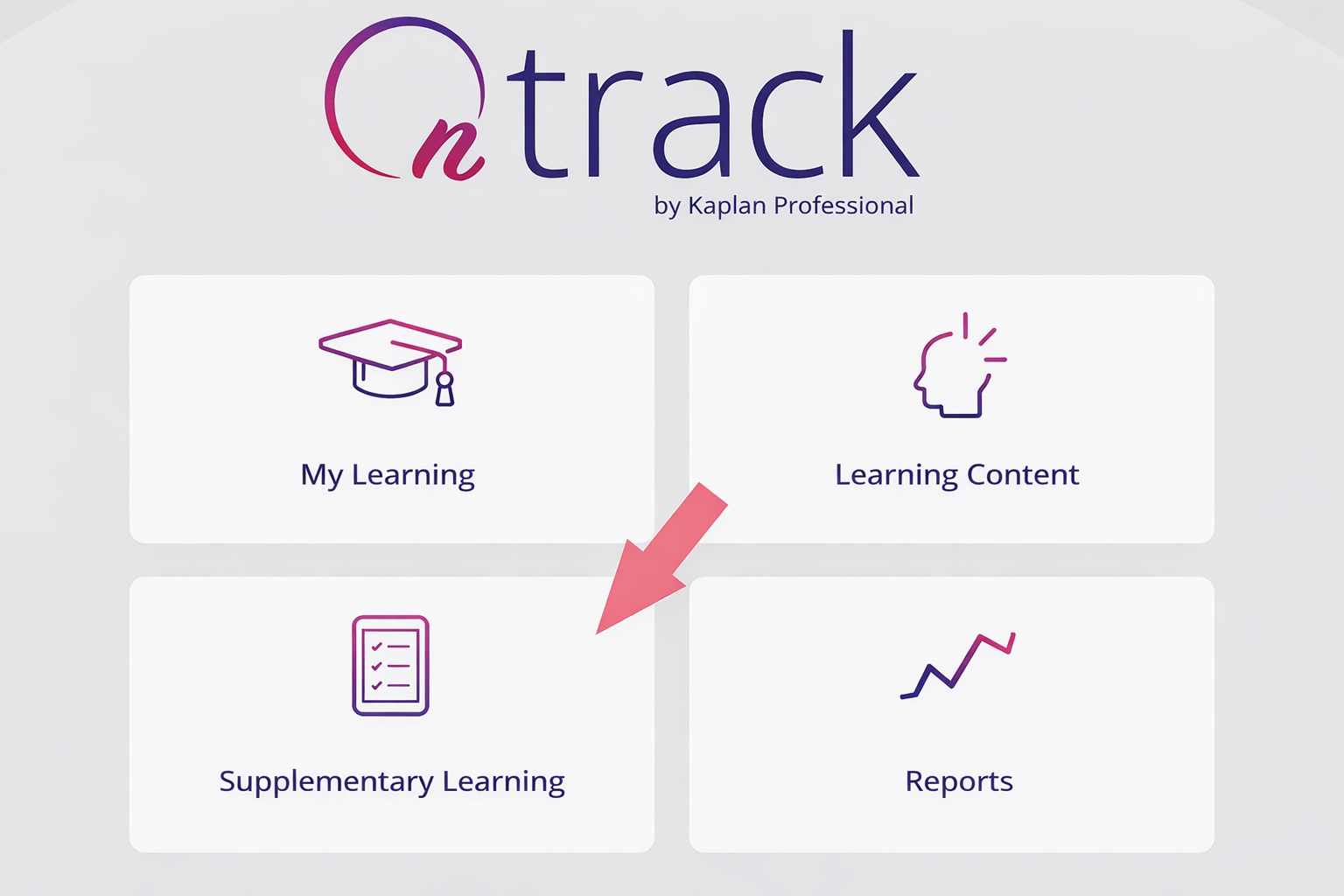
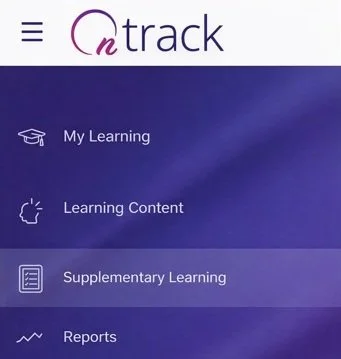
✅Click Add Activity

Note: If Add Activity is not available, learner upload permissions may be disabled. Contact the Training Manager or Compliance Team
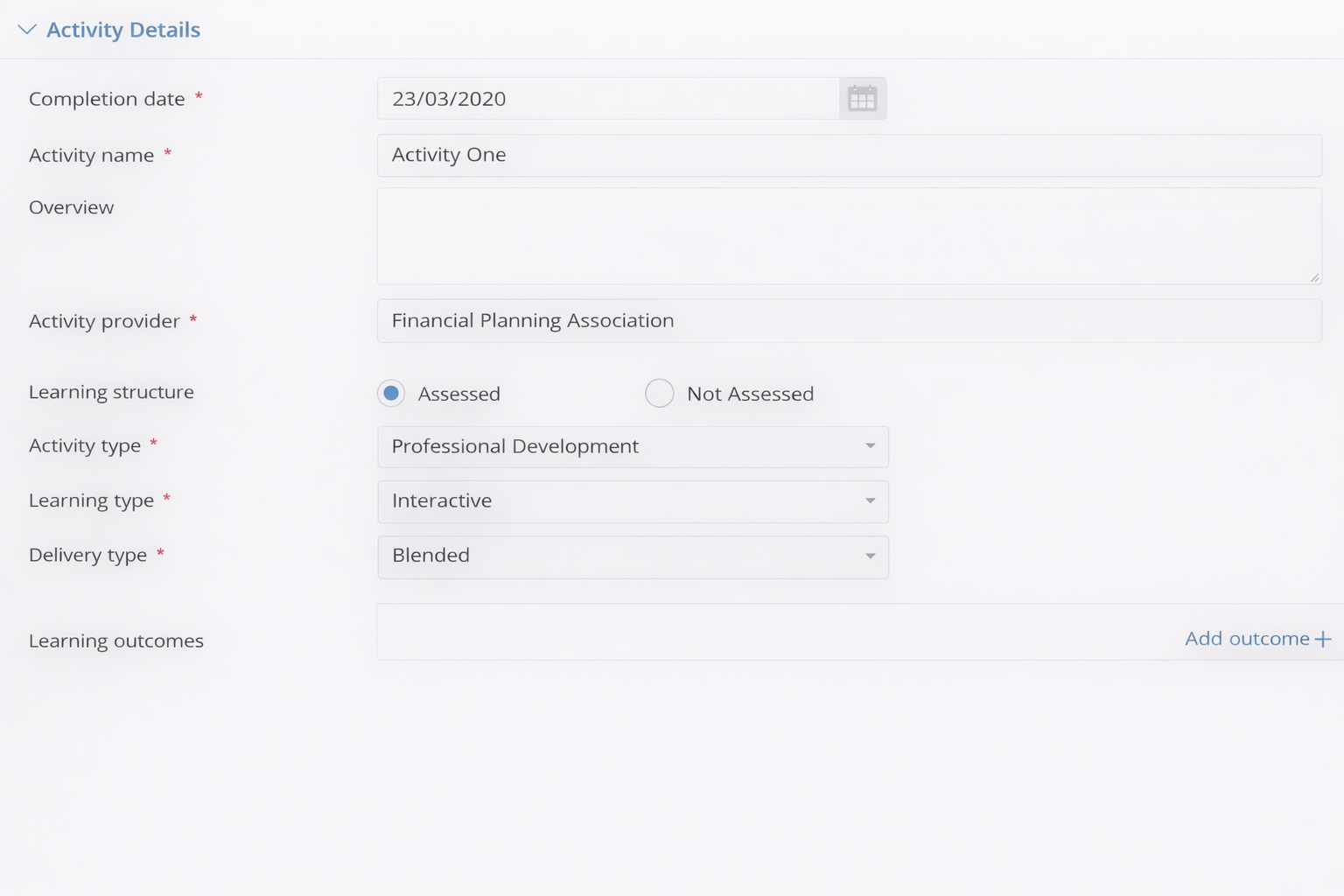
Step 2: Enter Activity Details
Complete all mandatory fields (marked with a red asterisk):
Learning Structure – Select Assessed or Not Assessed.
Activity Type – Select the option that best reflects the structure of the activity (e.g. Webinar, Conference, Formal Education).
Learning Type / Delivery Type – Select the options that best describe how the learning was delivered.
Step 3: Mapping Information
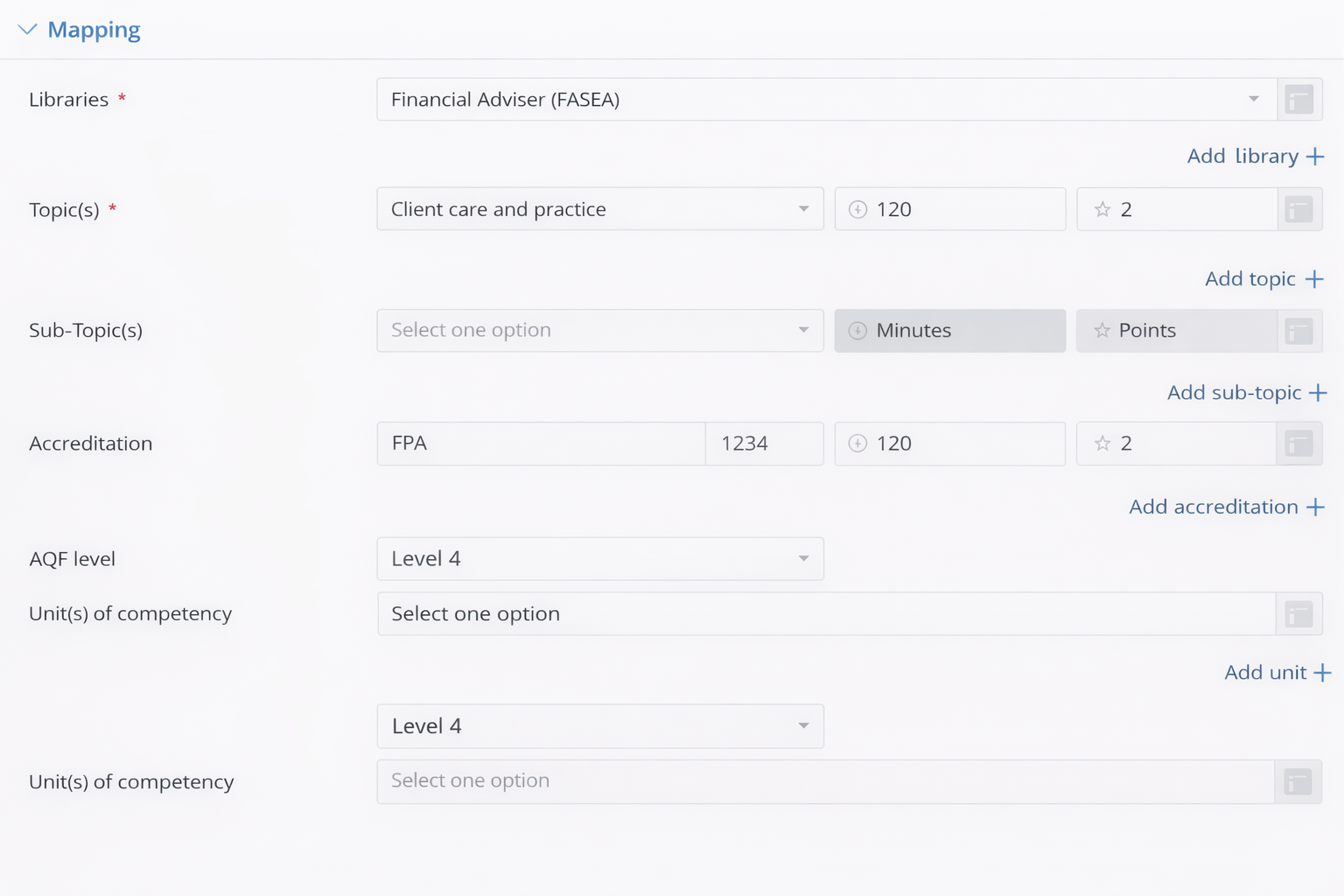
Enter the CPD mapping details as shown on the certificate or confirmation of attendance:
Library (mandatory)
Topic / FASEA Area (mandatory)
Sub-topic (Knowledge Areas / ASIC, if applicable)
Note: The Library and Topic fields must be completed before submission.
Step 4: Upload Supporting Documentation
Upload supporting evidence where available, such as:
Certificate of attendance
Transcript
Confirmation email
Accepted file formats: JPG, PNG, PDF, MSG, ZIP
Best practice: Save email confirmations as MSG files and upload the full email to retain all attachments.
Step 5: Submit the Activity
Submit the Supplementary Learning activity.
Once submitted:
The activity will be available for administrator review.
Supporting documents can be accessed for validation.
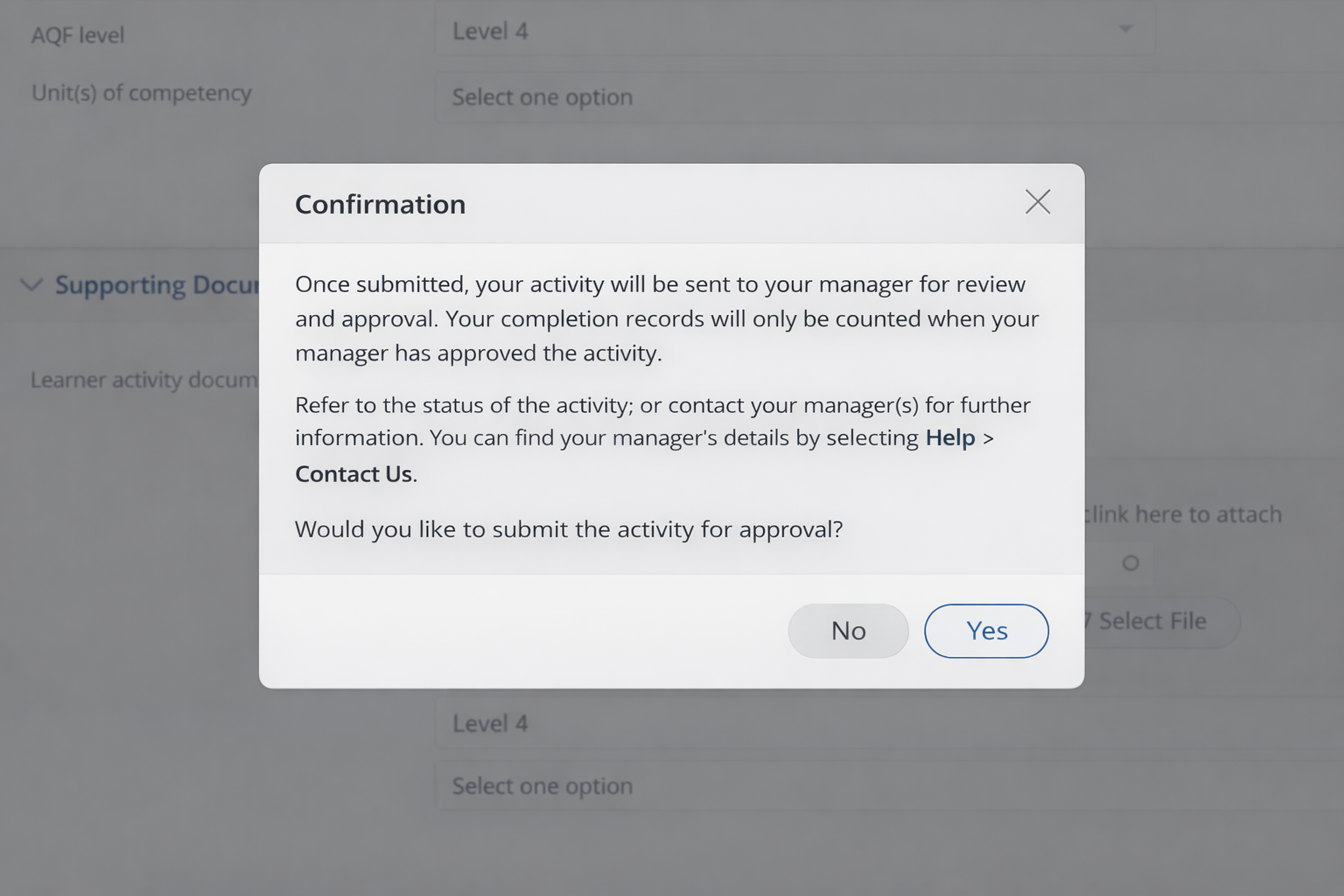
A submission confirmation message will appear on screen:
🎯 Outcome
Once submitted, the activity will remain Pending until reviewed by the appropriate Training Manager or Account Administrator.
🟢 Once the activity has been validated, you will receive a notification, and the status will change to Approved.
Your awarded CPD hours will then flow through to your My Learning Dashboard, and the activity will be visible in Reports.
🔴 If your activity is Declined, you will receive a notification outlining the reason provided by your Manager.