
Chapter 11 - Cyber Security and Use of Artificial Intelligence
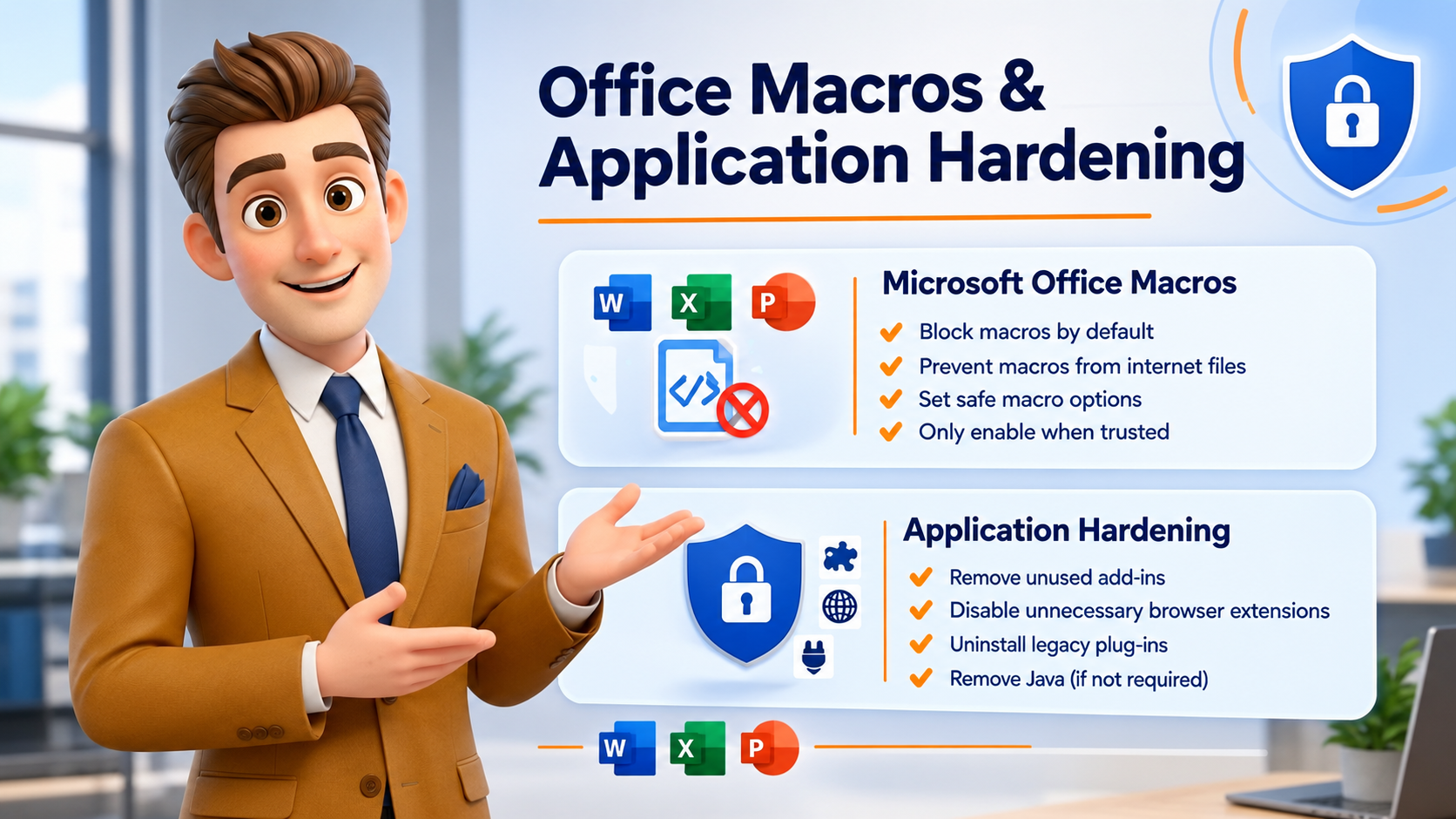
1. Microsoft Office Macro Settings
What are macros?
Macros are small programs built into Word, Excel or PowerPoint files that automate tasks. They can be useful for business, but cybercriminals often hide malicious code inside them to install malware, steal passwords or download ransomware.
How macros are blocked in practice
Default behaviour (recommended)
- Macros are disabled when a document is opened.
- You see a warning such as "Security Risk: Microsoft has blocked macros from running."
- The document still opens — but the macro does not run.
Files from the internet
- Files from email attachments, websites, Teams chats or cloud storage are marked as coming from the internet.
- Office detects this mark and automatically blocks macros.
- Even if the file contains a macro, it can't run unless the file is explicitly trusted.
Examples
❌ Risky scenario
- An employee receives an Excel file "Invoice.xlsm" from an unknown sender.
- The file contains a malicious macro.
- The user clicks "Enable Content."
- Malware is installed.
✅ Secure scenario
- The employee receives the same file.
- Office blocks the macro automatically.
- The user verifies the sender and the business purpose.
- The file is unblocked only if it's approved and trusted.
How to check or change macro settings
In Word, Excel or PowerPoint:
- Open the application.
- Go to File → Options → Trust Center → Trust Center Settings → Macro Settings.
Recommended settings:
- ✅ Disable all macros with notification
- ✅ Block macros from running in Office files from the internet
Avoid:
- ❌ Enable all macros (not recommended).
When should macros be enabled?
Only when all of the following are true:
- There is a legitimate business need.
- The file came from a known and trusted source.
- IT or the business owner has approved it.
- The document's authenticity has been verified.
2. User Application Hardening
What is application hardening?
Application hardening means reducing unnecessary features that attackers commonly abuse. Think of it as a simple rule:
"If we don't need it, disable it."
The fewer features available, the fewer opportunities attackers have to exploit them.
A. Unused Office add-ins
Add-ins extend Office functionality — for example PDF tools, third-party reporting tools, CRM integrations or legacy business extensions. If they're not needed, they simply widen the attack surface.
How to view and disable Office add-ins
- Go to File → Options → Add-ins.
- At the bottom, select COM Add-ins and click Go.
- Review the installed add-ins.
- Uncheck or remove any that are not required for work, unknown, or no longer supported.
✅ Keep: approved corporate add-ins. ❌ Remove: old PDF converters, unused toolbar extensions, and legacy tools no longer supported.
B. Browser extensions and plug-ins
Browser extensions often have broad permissions — they can read web pages, capture browsing activity and access sensitive information.
Microsoft Edge
- Open Edge.
- Select Extensions (the puzzle-piece icon) → Manage Extensions.
- Review the installed extensions and disable or remove anything unnecessary.
Google Chrome
- Open Chrome.
- Go to chrome://extensions.
- Review the extensions and disable or remove anything not required.
Good practice — ask yourself:
- Do I know what this extension does?
- Do I still use it?
- Is it company-approved?
If the answer is no — remove it.
C. Legacy browser plug-ins
Older technologies are frequent attack targets — for example Java browser plug-ins, Adobe Flash (obsolete), Silverlight and legacy ActiveX controls.
What to do
- Uninstall them if they're no longer required.
- Disable them through browser settings or IT policy.
- Use modern web applications instead.
Why? Many security incidents start when attackers exploit vulnerabilities in old software that stays installed but unused.
D. Java (if not required)
Some older business applications still use Java. If you don't need it, remove it:
- Open Control Panel → Programs and Features.
- Find Java.
- Uninstall it.
If Java is required: keep it updated, and limit its use to approved business applications only.
Quick compliance summary
Microsoft Office macros
- Keep macros disabled by default.
- Block macros in files downloaded from the internet.
- Enable macros only when there's a verified business need and a trusted source.
Application hardening
- Remove or disable unnecessary Office add-ins.
- Remove unused browser extensions and plug-ins.
- Uninstall outdated technologies such as Java, Flash, Silverlight and ActiveX where not required.
- Regularly review installed software and extensions to shrink the attack surface.
Together, these steps significantly reduce the likelihood of malware infections, phishing attacks and unauthorised system compromise.
What you'll learn
- Why Office macros are a common way malware gets in — and how they're blocked.
- How to check and set safe macro options in Word, Excel and PowerPoint.
- What "application hardening" means and why fewer features means less risk.
- How to remove risky Office add-ins, browser extensions and legacy plug-ins.
These two controls come from the ACSC Essential Eight and are part of Section 5.10 of our Cyber Security Policy. The idea is simple: stop untrusted code from running, and switch off features we don't use so attackers have fewer ways in.