
Chapter 1 - An Intro to IIP
Writing SOA’s is time consuming
IIP has an in-house paraplanning service. You can outsource this to us.
It’s like a taxi service - for paraplanning.

Before You Start
Before you can start working with another user, you will need to send a shared user request to connect users.
You can follow the guide in Lesson 4: Adding a shared user. Send you shared user request to connect with camela.lumacang@insightmp.com.au
Creating the SOA Request
Let’s take a look at how to create a new SOA Request
Step 1: New SOA Request

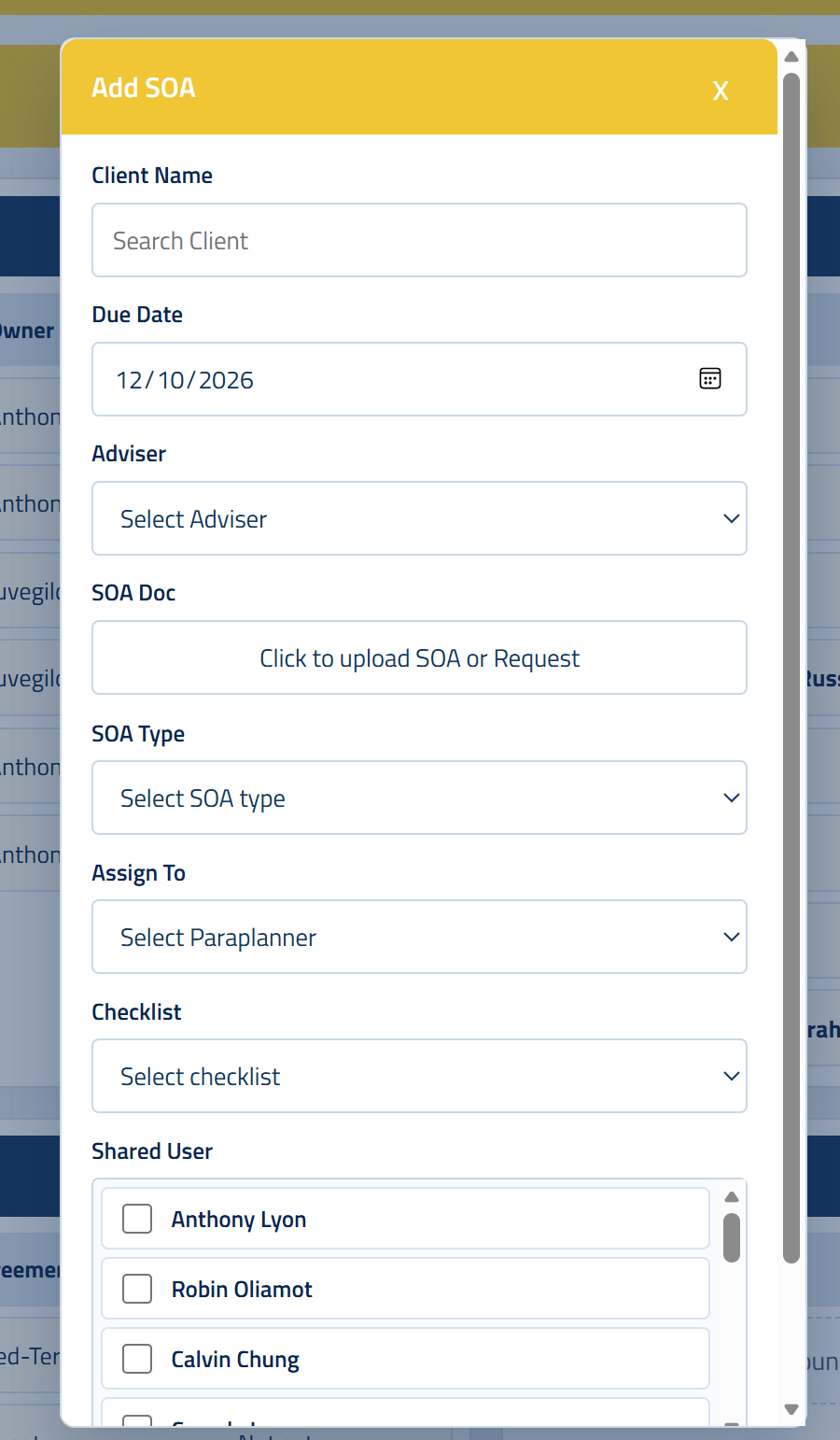
Step 2: Fill Out The Popup
Complete the Add SOA Popup with the relevant details.
You can upload your SOA Request Form to the request from the Popup and assign the request to Camela.
Step 3: Add Any Details
Sharing ProductRex Scenario
Instead of writing a paraplaning request, you can use the Finley Chat Console to build the paraplanning request from your file notes and other documents
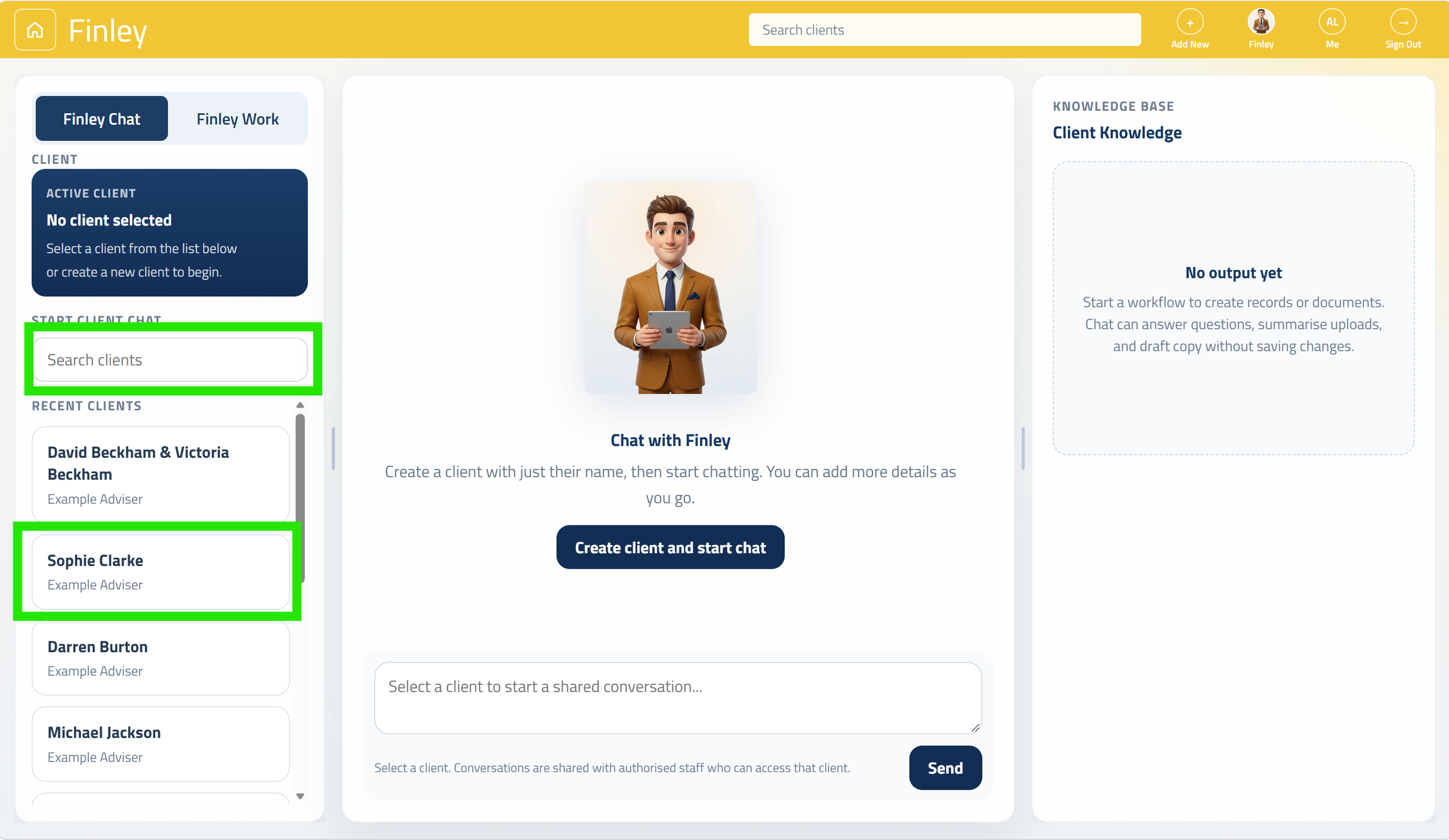
1. Search your client
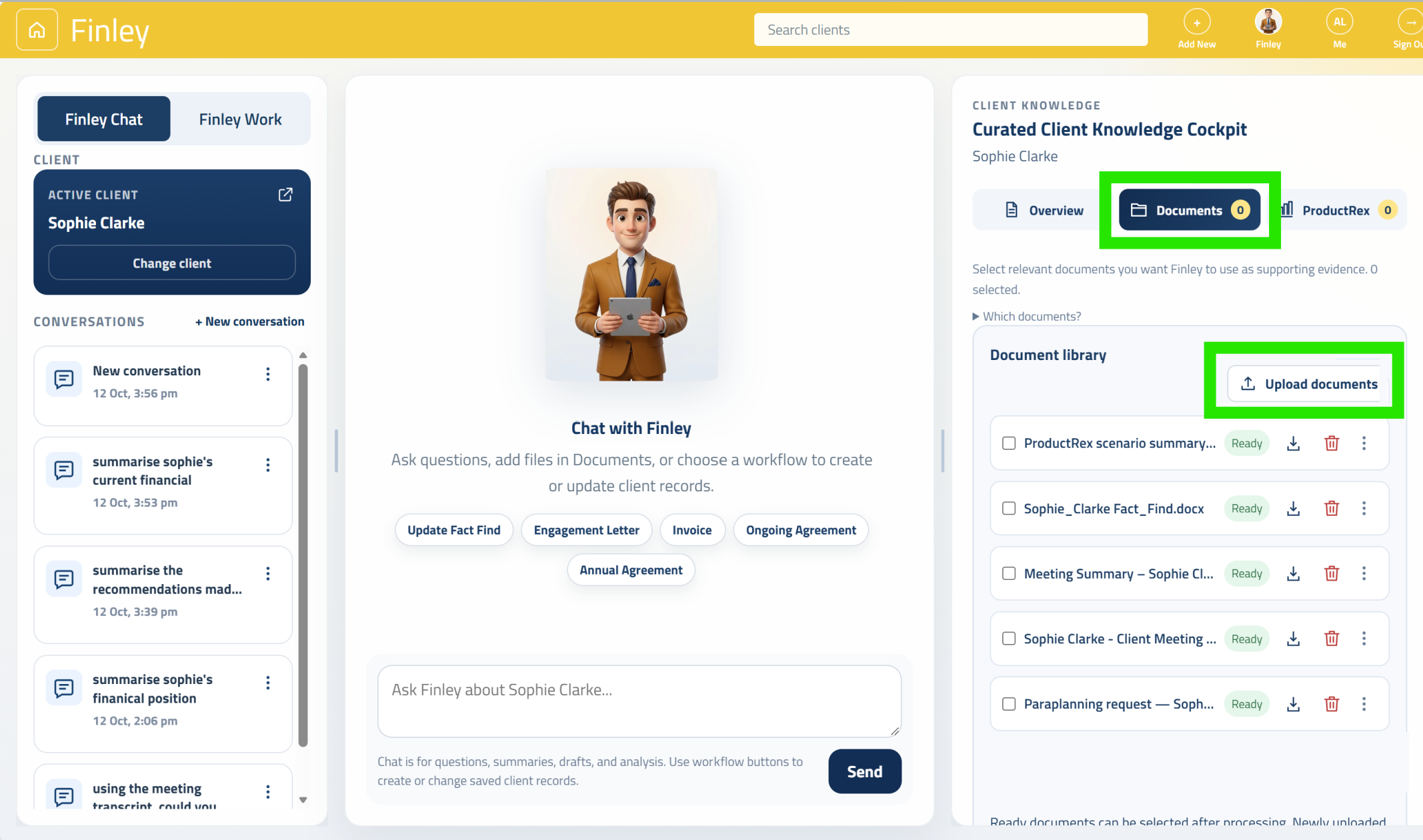
2. Upload documents
From the top navbar, select ‘Add New’
Then select ‘New SOA Request’.
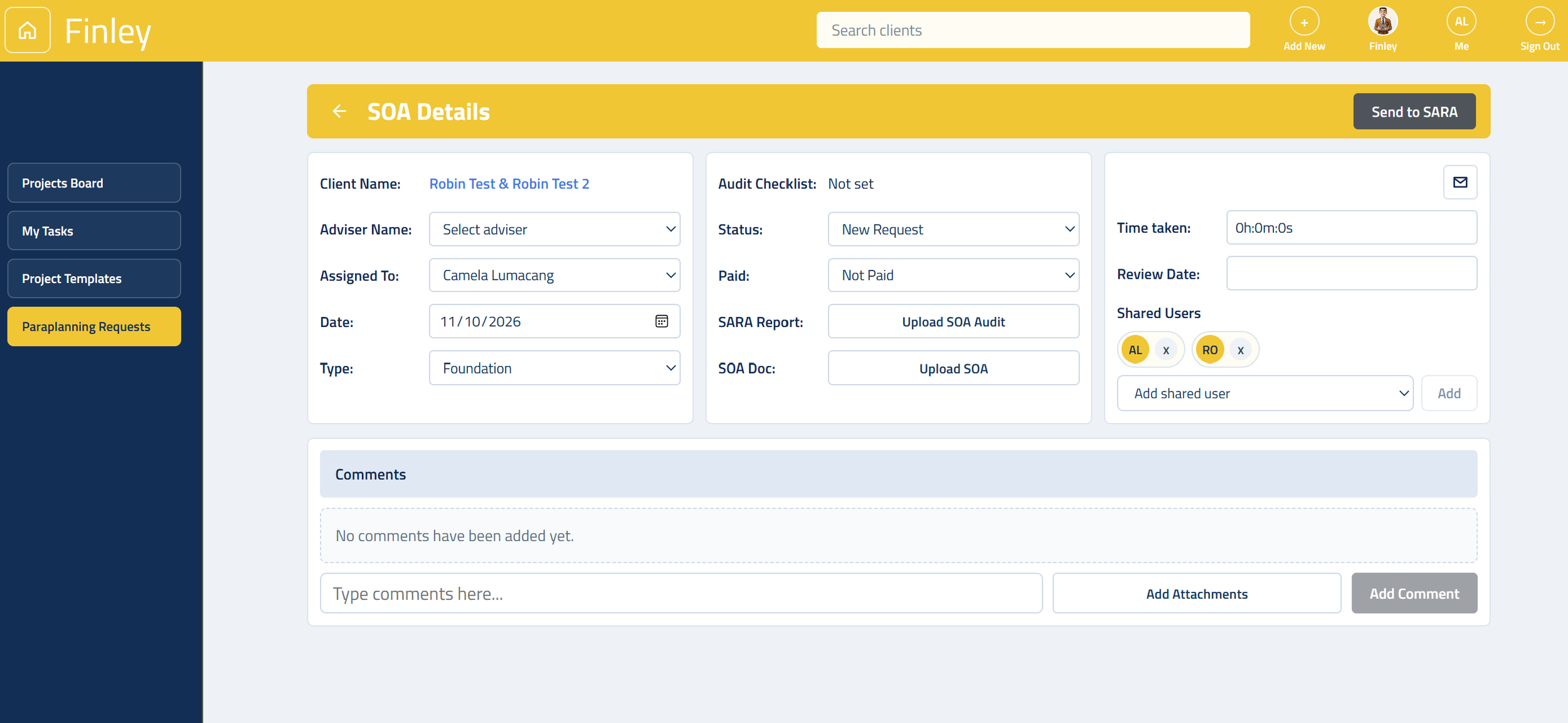
Your new SOA Request will be created with the status ‘New Request’.
You can add any further instructions and documentation for the paraplanner in the Comments section.
Your paraplanner will communicate using the comments section in the SOA Details. The paraplanner will also send any notifications to you using the email function in the SOA Request.
If your SOA requires super or investment recommendations, you can share the scenario with the paraplanner.
The yoututbe video below provides instructions on shaing a ProductRex scenario with another user
Using the Finley Chat Console To Build Your SOA Request
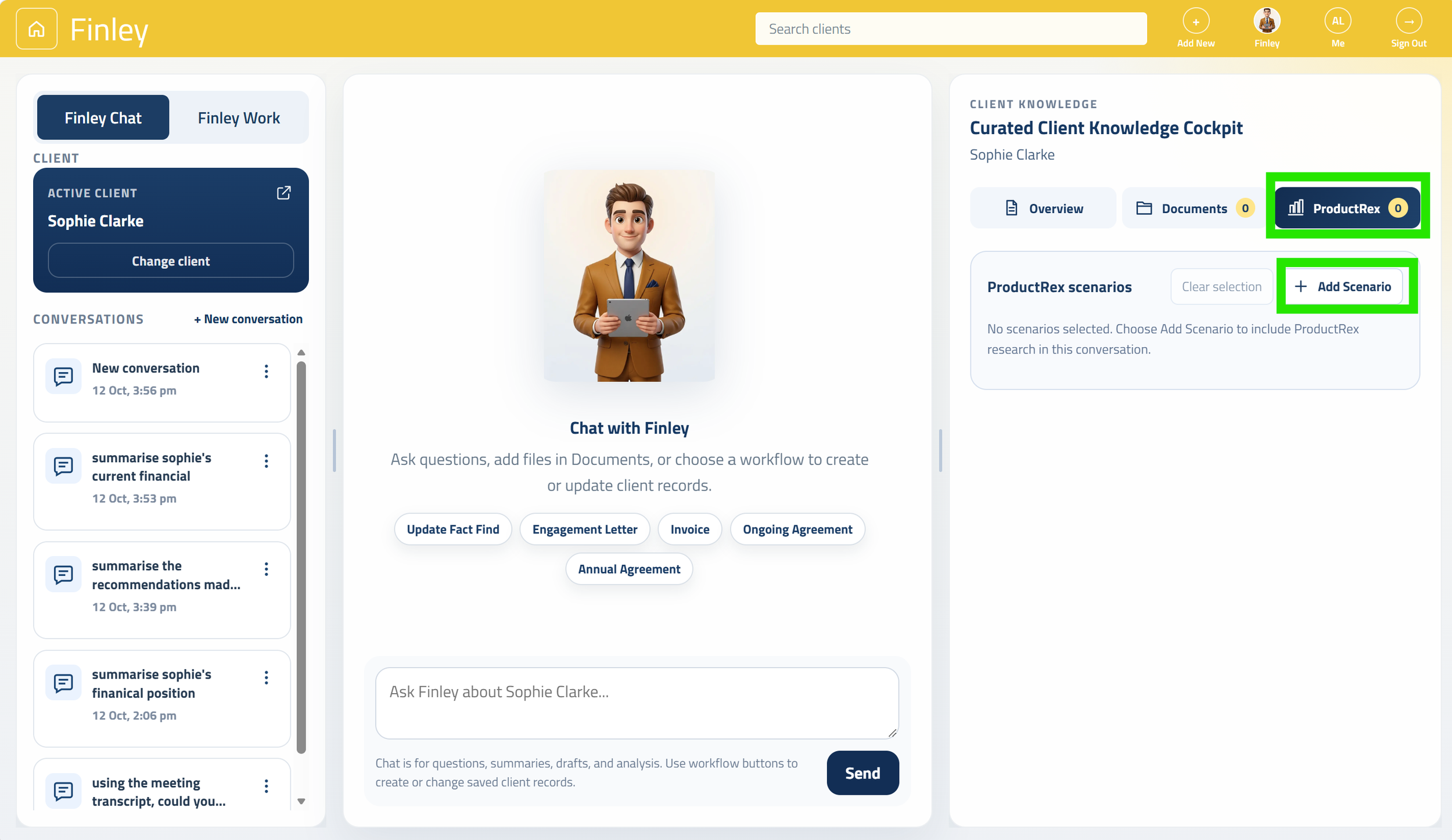
3. Connecting ProductRex Scenarios
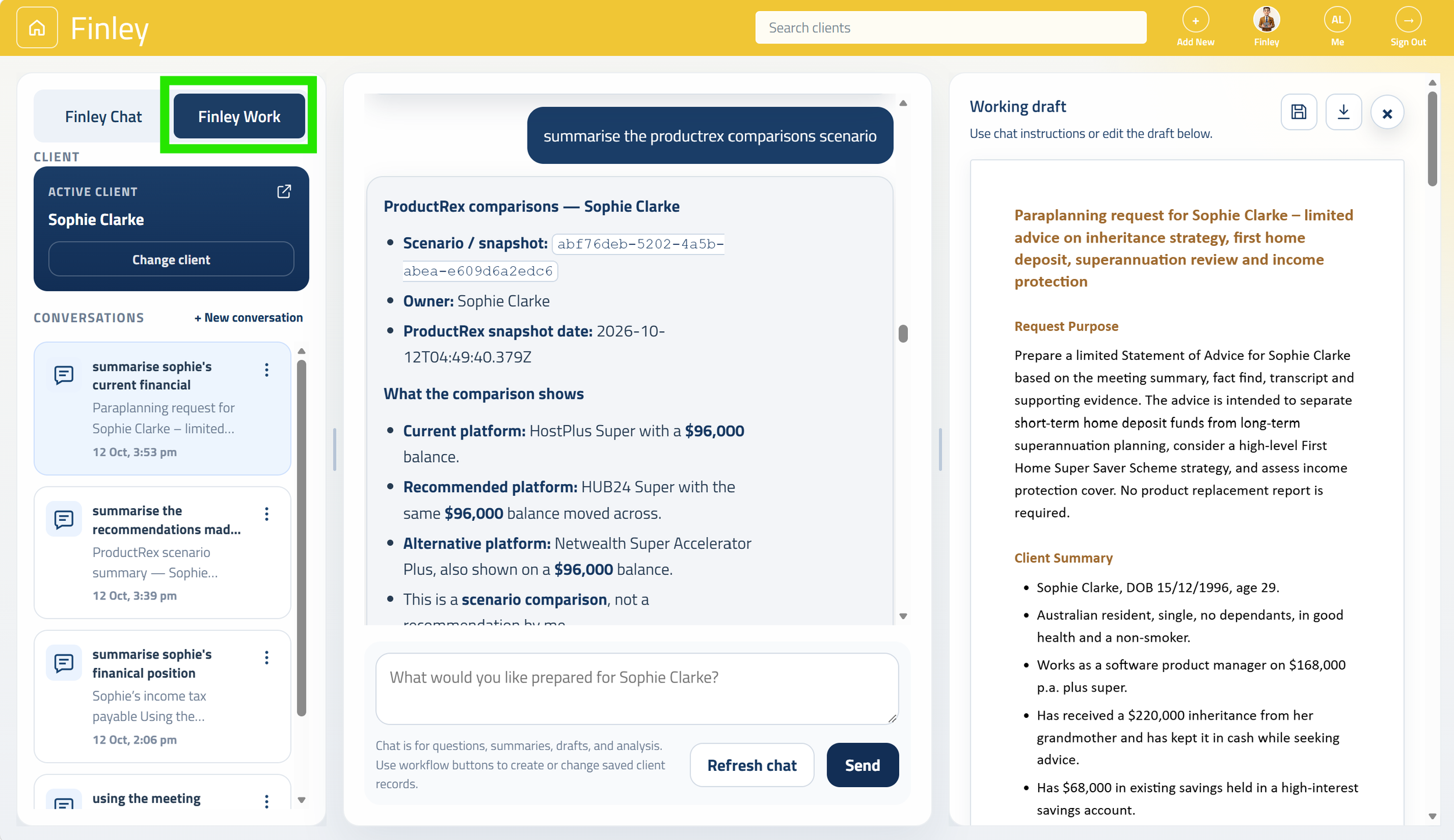
4. Chatting to Finley in ‘Work’ mode
From the Finley Chat Console, search and select your client
From the Curated Client Knowledge Cockpit, select the Documents tab.
Use the upload documents button to upload your document to Finley.
Finley will extract the data from your documents, ready for chat. Once processed, the status of the document will be ‘Ready’.
Tick which documents you wish to use in your paraplanning chat.
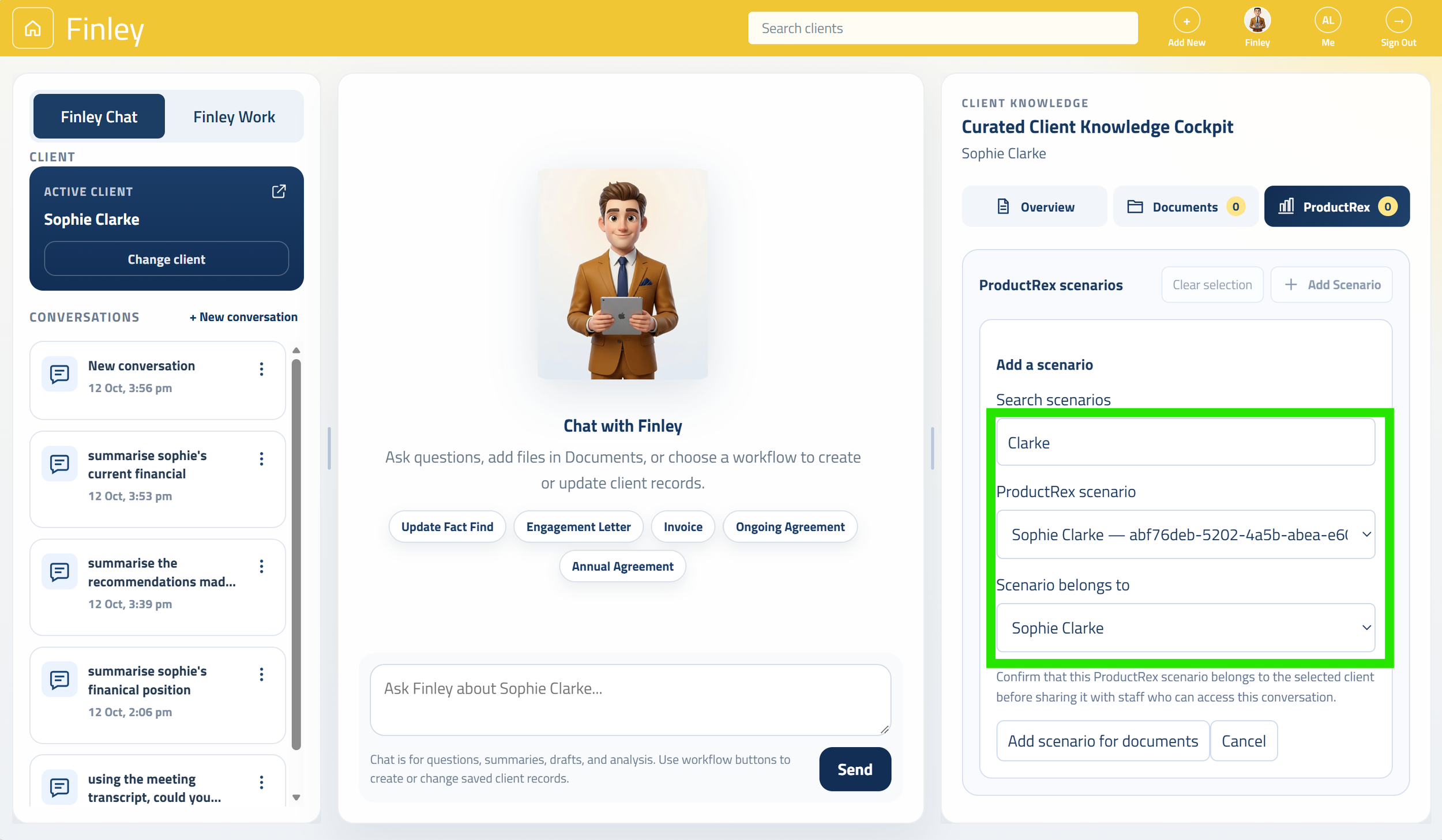
From the Curated Client Knowledge Cockpit, select the ProductRex tab.
Use the ‘Add Scenario’ button to pull through your ProductRex scenario/s to Finley.
Search your client from your ProductRex scenarios and map the scenario to the client or partner.
Search your client from your ProductRex scenarios and map the scenario to the client or partner.
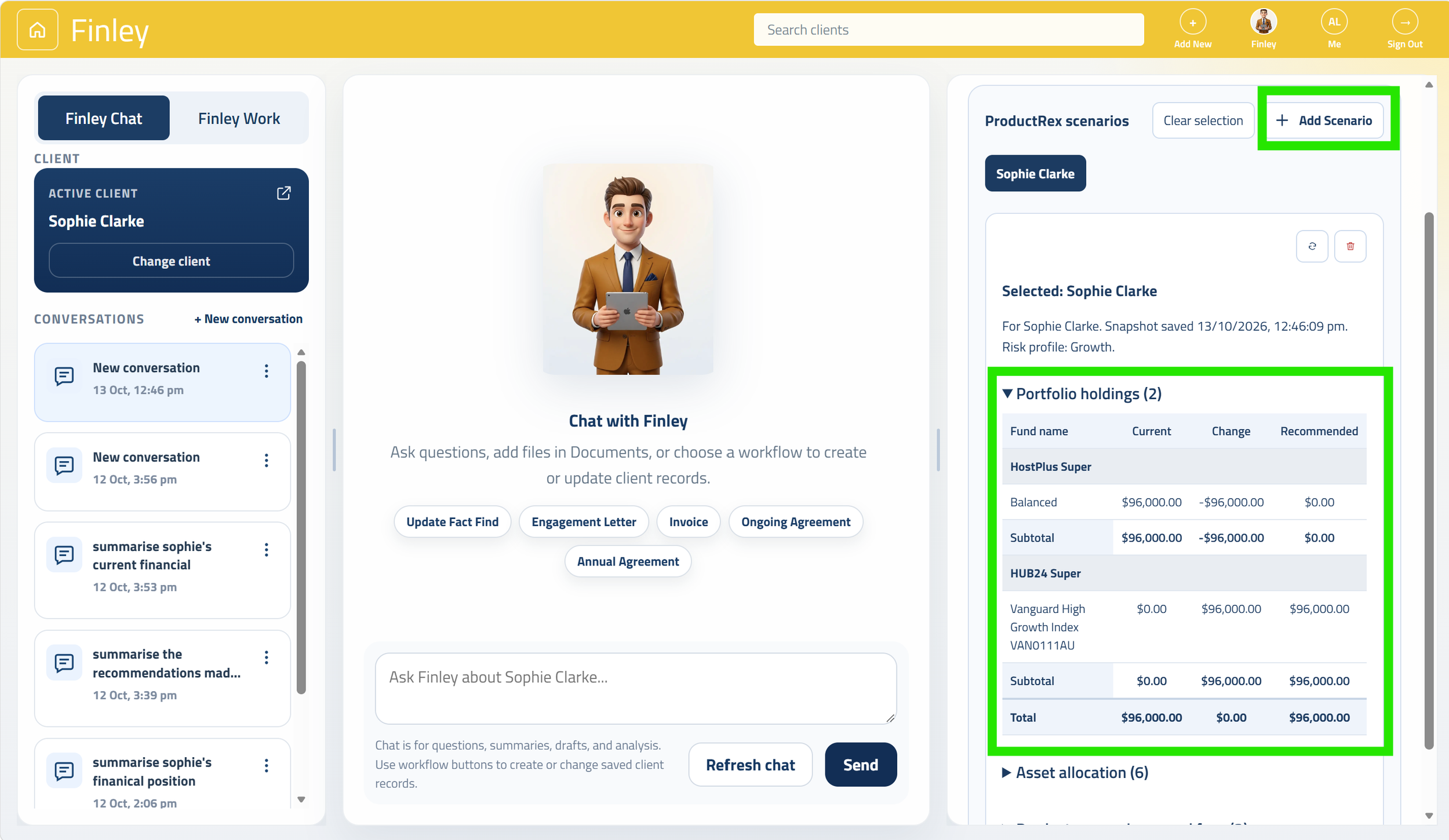
Click Add Scenario to pull the ProductRex data into Finley
Finley will pull the scenario data into the Client Knowledge Cockpit.
You will be able to see the proposed portfolio holdings, asset allocation and fee comparison tables in the Finley Chat Console.
You can chat to Finley to build your paraplnning request.
Where you have multiple scenarios, you can click ‘Add Scenario’ to pull additional ProductRex scenarios into Finley
In the top left corner, switch Finley over to ‘Work’ mode to start building your paraplanning request.
You can ask Finley to build out your SOA components like the client objectives, scope of advice, recommendations and ProductRex scenarios.
Finley will build you a paraplanning request to be used in the SOA by our paraplanner