
Chapter 11 - Cyber Security and Use of Artificial Intelligence
1. Overview & Learning Objectives
This lesson covers your obligations under Artificial Intelligence (AI) Usage Policy in relation to the three AFSL-approved public AI tools: Claude (Anthropic), Grok (xAI), and ChatGPT (OpenAI). By the end of this lesson you will be able to:
Explain why privacy controls on AI tools are a regulatory obligation, not just best practice.
Activate private or temporary chat mode on each approved platform before any work-related session.
Verify and maintain your opt-out from model training on all accounts.
Identify what data must never be entered into a standard (non-private) AI session.
Know the reporting obligation if a suspected data exposure occurs.
⚠️ Regulatory Context
Mishandling client data through AI tools can constitute a breach of your obligations under the Corporations Act 2001 (Cth), the Privacy Act 1988 (Cth), and the Licensee’s compliance framework. Non-compliance may result in disciplinary action or licence consequences.
2. Why This Matters
Generative AI tools like Claude, Grok, and ChatGPT are trained on large datasets. By default, some platforms use your conversations to improve their models. This creates a significant risk when you work with:
Client names, contact details, or account numbers
Financial position, product holdings, or advice records
Any non-public or commercially sensitive firm information
Personal information as defined under the Privacy Act 1988 (Cth)
Even a brief, seemingly innocent prompt can contain enough identifiable detail to constitute a data breach if that conversation is retained or used for training. The policy requires you to prevent this before it occurs – not after.
2.1 Platform Privacy Defaults at a Glance
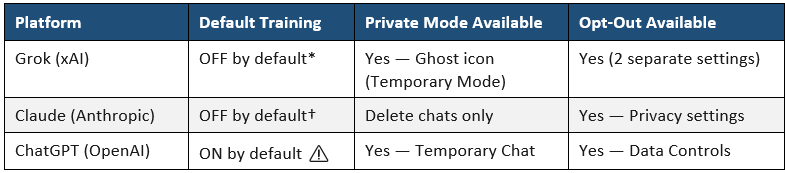
* Grok defaults to no training via grok.com and the Grok app. If you access Grok via X (formerly Twitter), separate X platform settings also apply.
† Claude consumer plans updated to an opt-in training model in September 2025. The default is privacy-protective if no opt-in was made.
⚠️ Action Required for ChatGPT Users
ChatGPT defaults to training being ON. If you use ChatGPT and have not yet disabled training in your account settings, you must do so before your next work-related session.
3. Claude (Anthropic) — Your Step-by-Step Guide
3.1 Understanding Claude’s Privacy Model
Claude does not have a built-in ‘Temporary Chat’ equivalent. Instead, privacy is achieved by combining three controls:
Opting out of model training in your account settings
Using professional judgment to avoid entering sensitive data in prompts
Deleting the conversation after each work-related session
If you use a Claude for Work (Team or Enterprise) account provided by the firm, you are automatically excluded from model training under Anthropic’s commercial terms. Confirm with your manager or IT which account type you hold.
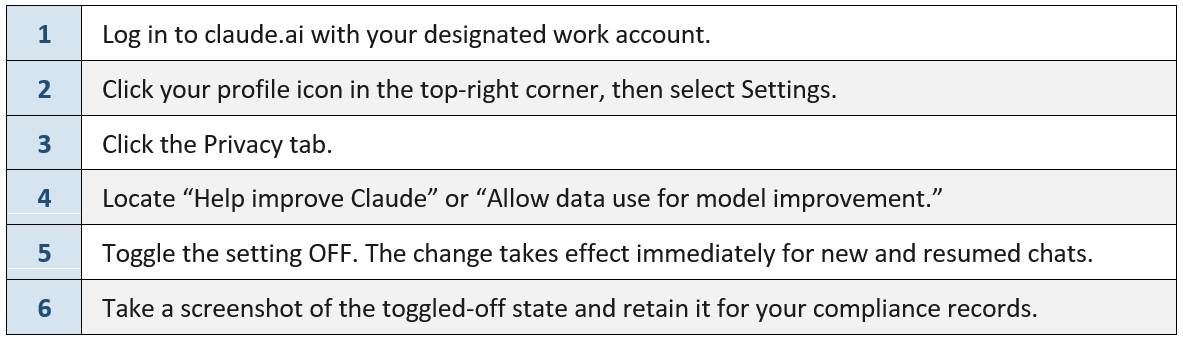
3.2 Opt Out of Model Training — Desktop/Web (claude.ai)
Complete these steps once. Re-verify after any app update, password reset, or new device login.
3.3 Opt Out of Model Training — Mobile App

3.4 Deleting Conversations After Each Work Session

ℹ️ Data Retention Note
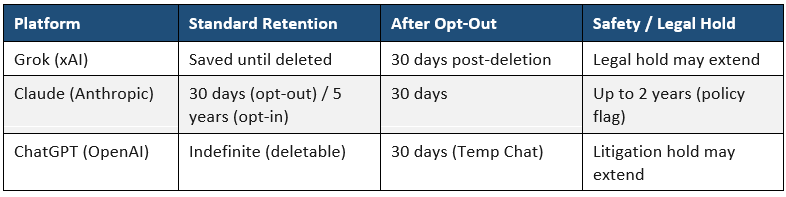
Data retention reminder: If training was previously opted in, Anthropic retains data submitted during that period for up to 5 years. The opt-out prevents future use only. Safety-flagged conversations may be retained for up to 2 years regardless of opt-out status. This is another reason to never enter real client data.
⚠️ Important: Feedback Buttons
Feedback buttons: Providing ‘thumbs up / thumbs down’ feedback on a Claude response — even when training is disabled — may re-submit that conversation for model training. Do not use AI feedback buttons on any work-related conversation.
4. Grok (xAI) — Your Step-by-Step Guide
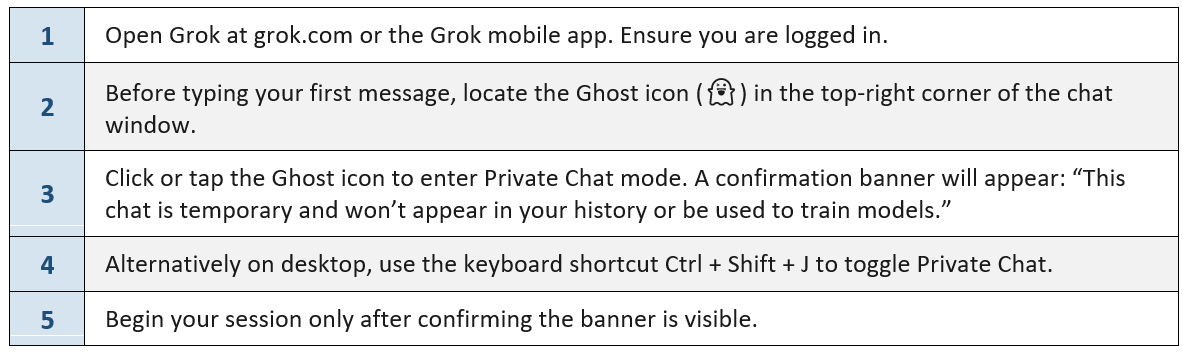
4.1 Activate Private Chat (Temporary Mode) — Every Session
Private Chat ensures your conversation is not saved to history and is not used for model training. This must be activated at the start of every work-related session — it does not persist.
4.2 Opt Out of Model Training — Persistent Settings
You must complete both Setting A and Setting B. Disabling only one still allows the other data source to be used for training.
Setting A — grok.com website:

4.2 Opt Out of Model Training — Persistent Settings
You must complete both Setting A and Setting B. Disabling only one still allows the other data source to be used for training.
Setting A — grok.com website:

Setting B — Grok Mobile App:

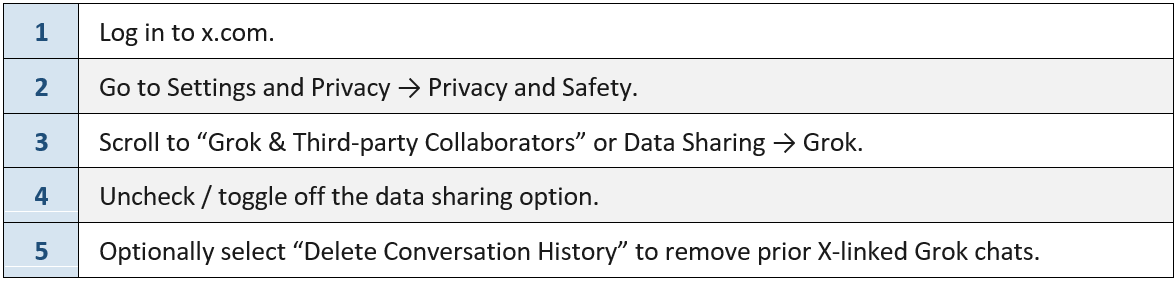
Setting C — If you access Grok via X (Twitter):
5. ChatGPT (OpenAI) — Your Step-by-Step Guide
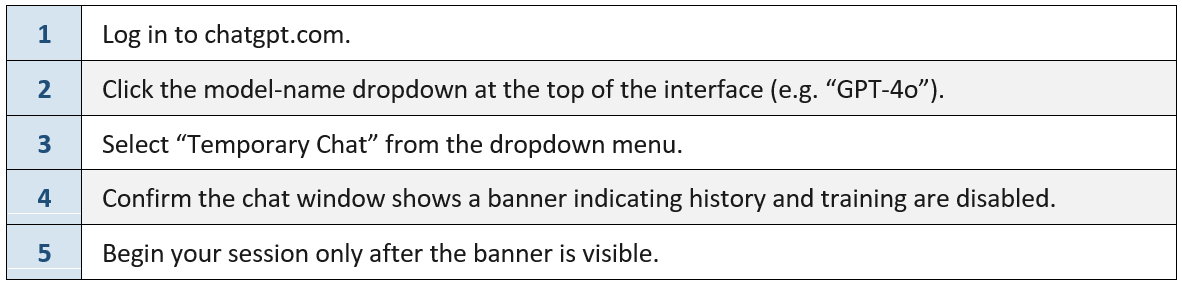
5.1 Activate Temporary Chat — Every Session
Temporary Chat prevents the conversation from appearing in history, from creating memories, and from being used for model training. It must be re-enabled at the start of each new session.
Desktop / Web (chatgpt.com):
Mobile App (iOS / Android):

5.2 Opt Out of Model Training — Persistent Setting
Via Account Settings:

Via OpenAI Privacy Portal (additional step):

⚠️ Additional Controls for Memory & Atlas Users
ChatGPT’s Memory feature and the Atlas browser product each have separate training toggles. If you use these features, also disable “Include web browsing” in Data Controls → Atlas settings, and disable Memory under Settings → Personalization.
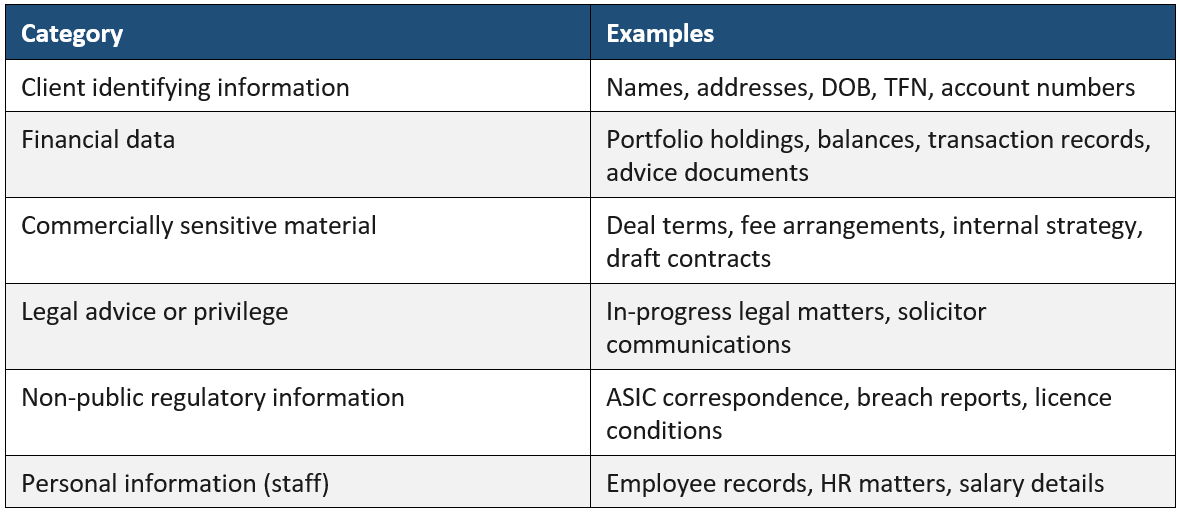
6. What Must Never Be Entered into a Standard AI Session
The following categories of information must never be entered into any AI tool unless you have first activated private/temporary chat mode, anonymised or removed identifiable data, AND confirmed your training opt-out is active:
7. Data Retention Summary
8. Incident Reporting Obligations
If you suspect that client data, personal information, or commercially sensitive material has been entered into an AI tool under a standard (non-private) session:
Stop the session immediately. Do not continue the conversation.
Note the platform, approximate time, and the nature of the information that may have been disclosed.
Report to the Compliance Manager within 24 hours. Do not wait to ‘see what happens.’
Log the incident in the Breach Register in the Compliance Hub.
⚠️ Why 24 Hours Matters
Prompt disclosure allows the Licensee to assess notification obligations under the Notifiable Data Breaches scheme (Privacy Act 1988). Late or non-reporting of a suspected breach can itself constitute a compliance failure.
9. Your Ongoing Obligations
Your responsibilities under IIP’s AI Usage Policy are continuous, not a one-time task:
Re-verify opt-out settings after any app update, password reset, or login on a new device.
Complete this training as required by the Compliance Committee.
If a new AI tool is approved, do not use it for work purposes until you have received training or have verified privacy settings.
Do not use unapproved AI tools for any work-related purpose.
Read full AI Usage Policy here: Compliance Hub ➡️ Policy Register ➡️ Artificial Intelligence (AI) Usage Policy